Last 12 months:
- April 2026
- February 2026
- November 2025
- December 2023
- November 2023
- September 2023
- January 2023
- August 2022
- May 2022
- April 2022
- March 2022
- February 2022
Last 12 months with post count:
- April 2026 (1)
- February 2026 (7)
- November 2025 (2)
- December 2023 (14)
- November 2023 (1)
- September 2023 (1)
- January 2023 (5)
- August 2022 (1)
- May 2022 (2)
- April 2022 (4)
- March 2022 (2)
- February 2022 (2)
Last 18 days:
- April 10, 2026
- February 24, 2026
- February 21, 2026
- November 3, 2025
- December 18, 2023
- December 17, 2023
- December 16, 2023
- December 15, 2023
- December 14, 2023
- December 13, 2023
- December 12, 2023
- December 11, 2023
- December 10, 2023
- December 9, 2023
- December 8, 2023
- December 7, 2023
- December 6, 2023
- December 5, 2023
Last 32 posts:
- Révision 202.14 L’écologie
- Delf A1 – s’entraîner à l’oral
- Révision 202.13 Les vidéos
- Révisions 202.13 entretien d’embauche
- Revisions pour le placement test for Global Scholar
- Révision 202.13 lectures culture
- Revision 202.13 Grammaire
- Révision 202.13 Vocabulaire
- Research Publications
- Sanguis Christi. Culture visuelle / Culture visionnaire, XIIIe–XVIIIe siècles
- Atelier médiéval, entre fantasmagorie et sacralité, l’atelier comme œuvre, Ligeia, n°205, CNL, Paris, 2023
- Un manuscrit parisien et ses énigmes, livre d’heures des Le Tellier, 1460”, PECIA, n°24, Brepols, 2022
- Raoul et son Ethos discours et image d’auteur dans la création littéraire médiévale, L’auteur dans son œuvre – entre présence et effacement, Harmattan, Paris, 2021
- Troisième genre infernal, entre utopie terrestre et dystopie infernale, Redistribution du Genre, University of Rennes, 2020
- Miracle marial, pilier du livre d’heures de Courtanvaux c.1460, Les Miracles de Notre-Dame, du Moyen Âge à nos jours, Éditeur Jacques André, Lyon, 2020
- Témoignage par l’exemplum : la construction médiévale d’une sociopoétique infernale. Revue de Sociopoétique, Centre de Recherches sur les Littératures et la Sociopoétique, Presses Universitaires Blaise Pascal, Université Clermont Auvergne, Vol Varia 4, 2019
- Du temps absolu à l’espace universel, le paradigme infernal médiéval, Tondale et Owen, Pratiques et Conceptions de l’espace au Moyen Âge, Journal Études Médiévales Anglaises, N°94, Dec 2019
- Du mot à l’image, les Paines denfer du Grand Kalendrier et Composts des Bergiers”, Revue Textimage, Université Jean Moulin Lyon 3, Vol. 16, (2018)
- Travels through The Dark Realms of Medieval Clerical Fantasies: Sex & Erotica in the Infernal Testimony”, Comitatus, UCLA Center for Medieval and Renaissance Studies, 48, (Sept. 2017)
- La matière d’Enfer, senefiance syncrétique et polyphonie littéraire”, Matières à débat, la notion de matière littéraire dans la littérature médiévale, Presses Universitaires de Rennes, (Spring 2017)
- L’odyssée de Brandain dans l’enfer fictionnel”, French Literature Series, XLI Odysseys, Editions Brill, (Dec. 2016)
- Chaîne de traduction, s’approprier le Tractatus pour translater l’Espurgatoire”, l’évolution de la langue et le traitement des intraduisibles au sein de la recherche, Editions des Archives contemporaines, (Sept. 2016)
- le Jeu et le Mot : sémiotique des passages chez Raoul de Houdenc”, Atelier de Traduction Numéro 23/2015, Editura Universităţii din Suceava, (2015)
- Peine et Douleurs, la Définition Sotériologique de l’Au-delà ”, TRANS-n°17, Paris : Presses Sorbonne Nouvelle, (2014)
- PECIA Le livre et l’écrit, 24 (2022) Du manuscrit à l’imprimé: une autre modernité
- Leipzig
- Appel à contribution – Easter in Late Antiquity and the Middle Ages — RMBLF.be
- Call for Papers: Medieval Ecologies, 2022 New England Medieval Conference (NEMC), Colby College, October 8, 2022 (Deadline: 20 June, 2022) — Medieval Art Research
- Appel à contribution – Rituals of Gender Staging and Performance in the Middle Ages — RMBLF.be
- CFP: In Sickness and in Health: Medieval Healing and the Community. Tenth Annual Medieval Studies Colloquium, 21 April 2023, University of Wisconsin-Madison, Deadline: 10 January 2023 — Medieval Art Research
- Conference: ‘Performance, Perception & Devotional Experiences in Medieval Sacred Spaces’, Universitat de Barcelona, 13-14 October 2022 — Medieval Art Research
- Unité 5 -0 petite révision
Last 3 weeks:
All posts in a drop-down:
Last 12 months with post count in a drop-down:
Last 17 weeks with some before and after text:
- some before textApril 6, 2026–April 12, 2026some after text
- some before textFebruary 23, 2026–March 1, 2026some after text
- some before textFebruary 16, 2026–February 22, 2026some after text
- some before textNovember 3, 2025–November 9, 2025some after text
- some before textDecember 18, 2023–December 24, 2023some after text
- some before textDecember 11, 2023–December 17, 2023some after text
- some before textDecember 4, 2023–December 10, 2023some after text
- some before textNovember 27, 2023–December 3, 2023some after text
- some before textSeptember 25, 2023–October 1, 2023some after text
- some before textJanuary 9, 2023–January 15, 2023some after text
- some before textAugust 22, 2022–August 28, 2022some after text
- some before textMay 9, 2022–May 15, 2022some after text
- some before textApril 25, 2022–May 1, 2022some after text
- some before textApril 11, 2022–April 17, 2022some after text
- some before textApril 4, 2022–April 10, 2022some after text
- some before textMarch 28, 2022–April 3, 2022some after text
- some before textMarch 14, 2022–March 20, 2022some after text
Options
The table below includes all of the current options available to you for customizing the
- Révision 202.14 L’écologie
- Delf A1 – s’entraîner à l’oral
- Révision 202.13 Les vidéos
- Révisions 202.13 entretien d’embauche
- Revisions pour le placement test for Global Scholar
- Révision 202.13 lectures culture
- Revision 202.13 Grammaire
- Révision 202.13 Vocabulaire
- Research Publications
- Sanguis Christi. Culture visuelle / Culture visionnaire, XIIIe–XVIIIe siècles
- Atelier médiéval, entre fantasmagorie et sacralité, l’atelier comme œuvre, Ligeia, n°205, CNL, Paris, 2023
- Un manuscrit parisien et ses énigmes, livre d’heures des Le Tellier, 1460”, PECIA, n°24, Brepols, 2022
- Raoul et son Ethos discours et image d’auteur dans la création littéraire médiévale, L’auteur dans son œuvre – entre présence et effacement, Harmattan, Paris, 2021
- Troisième genre infernal, entre utopie terrestre et dystopie infernale, Redistribution du Genre, University of Rennes, 2020
- Miracle marial, pilier du livre d’heures de Courtanvaux c.1460, Les Miracles de Notre-Dame, du Moyen Âge à nos jours, Éditeur Jacques André, Lyon, 2020
- Témoignage par l’exemplum : la construction médiévale d’une sociopoétique infernale. Revue de Sociopoétique, Centre de Recherches sur les Littératures et la Sociopoétique, Presses Universitaires Blaise Pascal, Université Clermont Auvergne, Vol Varia 4, 2019
- Du temps absolu à l’espace universel, le paradigme infernal médiéval, Tondale et Owen, Pratiques et Conceptions de l’espace au Moyen Âge, Journal Études Médiévales Anglaises, N°94, Dec 2019
- Du mot à l’image, les Paines denfer du Grand Kalendrier et Composts des Bergiers”, Revue Textimage, Université Jean Moulin Lyon 3, Vol. 16, (2018)
- Travels through The Dark Realms of Medieval Clerical Fantasies: Sex & Erotica in the Infernal Testimony”, Comitatus, UCLA Center for Medieval and Renaissance Studies, 48, (Sept. 2017)
- La matière d’Enfer, senefiance syncrétique et polyphonie littéraire”, Matières à débat, la notion de matière littéraire dans la littérature médiévale, Presses Universitaires de Rennes, (Spring 2017)
- L’odyssée de Brandain dans l’enfer fictionnel”, French Literature Series, XLI Odysseys, Editions Brill, (Dec. 2016)
- Chaîne de traduction, s’approprier le Tractatus pour translater l’Espurgatoire”, l’évolution de la langue et le traitement des intraduisibles au sein de la recherche, Editions des Archives contemporaines, (Sept. 2016)
- le Jeu et le Mot : sémiotique des passages chez Raoul de Houdenc”, Atelier de Traduction Numéro 23/2015, Editura Universităţii din Suceava, (2015)
- Peine et Douleurs, la Définition Sotériologique de l’Au-delà ”, TRANS-n°17, Paris : Presses Sorbonne Nouvelle, (2014)
- PECIA Le livre et l’écrit, 24 (2022) Du manuscrit à l’imprimé: une autre modernité
- Leipzig
- Appel à contribution – Easter in Late Antiquity and the Middle Ages — RMBLF.be
- Call for Papers: Medieval Ecologies, 2022 New England Medieval Conference (NEMC), Colby College, October 8, 2022 (Deadline: 20 June, 2022) — Medieval Art Research
- Appel à contribution – Rituals of Gender Staging and Performance in the Middle Ages — RMBLF.be
- CFP: In Sickness and in Health: Medieval Healing and the Community. Tenth Annual Medieval Studies Colloquium, 21 April 2023, University of Wisconsin-Madison, Deadline: 10 January 2023 — Medieval Art Research
- Conference: ‘Performance, Perception & Devotional Experiences in Medieval Sacred Spaces’, Universitat de Barcelona, 13-14 October 2022 — Medieval Art Research
- Unité 5 -0 petite révision
- ICP De la Mimesis à l’Imago
- Rencontres Imago – Grim
- 381 Résultats premier tour des présidentielles
- 381 l’entretien d’embauche Final SP2022
- 381 Atelier Entretien les règles Prez
- 380, Delf B1-B2 production orale épreuve 2021 f)
- 380, Delf B1-B2 production orale épreuve 2022 b)
- 381, réaliser mes objectifs de carrière
- Online Lecture: ‘The Guest of the Body – Visualising Souls in Medieval Europe, 1100-1200’, Shirin Fozi, 27th April 2022, 17:00-18:30 (BST) — Medieval Art Research
- 381 La revue de presse
- 381 Atelier Bilan de Compétence
- 381 Atelier FUNMOOC, CNED, DELF, TAPIF
- 380 Delf B1 Vidéo C- Compréhension, le commerce en ligne
- 490, Final, Étape J, l’introduction et la conclusion
- 380, Final, Etape J, l’introduction et la conclusion
- 490, Final Étape H, troisième partie
- 380, Final Étape H, troisième partie
- 490, L’après Covid, dernière lecture
- 490, Final Étape G, deuxième partie
- 380, Final Étape G, Deuxième partie
- 380, Delf B1-B2 production orale épreuve 2021 e)
- 380, Delf B1-B2 production orale épreuve 2021 d)
- 380, Delf B1-B2 production orale épreuve 2021 c)
- 380, Delf B1-B2 production orale épreuve 2021 a)
- 380, Final Étape F, Première partie
- 490, Final Étape F, première partie
- 380, DELF B2 production écrite
- 380, préparation au Delf (les posts de préparation)
- 380, Delf B1-B2 production orale
- 490 Film “Tout ce qui me reste de la révolution”, “le grand jeu”
- 381 Delf B1 Vidéo B- Compréhension, le télétravail
- 380 Delf B1 Vidéo A- Compréhension, la Génération Numérique
- 490 Politique, La révolution féministe s’invite dans la campagne, L’Humanité Novembre 2021
- 380 Delf B2 Compréhension Orale A (Astor/Alzeimher)
- 380 Delf B2 – Compréhension Orale B (Université/SalonLivre)
- 380 Delf B2 Compréhension Orale C (musicien/Braille)
- 380 Delf B2 Test Compréhension écrite C
- 380 Delf Test Compréhension écrite B
- 380 Delf B2 Test Compréhension écrite A
- 490, Élections présidentielles
- 490, Final, Rédiger un papier argumentatif
- 490, Faire un exposé
- 490, Final Étape E, le plan détaillé
- 490, Final Étape D, Problématique
- 380, Final Etape C, Spatialisation, Annonce
- 490, Final Etape B, 3 questions et des sources
- 490, Final Étape A, thème, sujet & angle, cas
- 380, Final Etapes F, G & H rédaction
- 380, Final Étape E, le plan détaillé
- 380, Final Étape D, Problématique & valeurs
- 380, Final Etape C, Spatialisation, Annonce
- 380, Final Etape B, 3 questions et des sources
- 380, Final Étape A, thème, sujet & angle, cas
- 380, présentation sur des associations
- 380 La valeurs France USA
- 380 Film, Ma part du gâteau
- Global connect, débat sur la durabilité
- 490 film “Pupille”, “Nos enfants nous accuserons”
- 380 Delf B1-B2, Compréhension orale A
- 380, Delf Réflexions su la société
- 490, Final, Instructions 2021
- 380, Final, Instructions 2021
- Global Connect, French Dept, Valentin, Video Games Designer
- 490 Lecture la durabilité
- A debate on Virtuality
- 490, Midterm 5em étape la conclusion
- Global Connect, French Dept, Margaux, restauratrice
- 380, Film, Comme un Chef
| Option | Description | Choices | Default Setting |
|---|---|---|---|
| type | The type of archives list to display | yearly, monthly, weekly, daily, postbypost | postbypost |
| format | How to display the archives list | option (drop-down menu), html (unordered list), custom (for use with the “before” and “after” parameters) | html |
| limit | The number of archive entries to display | Any valid number | No limit |
| showcount | Display post count of each archive entry | true, false | false |
| before | Text to go before each archive entry | Any string of text or HTML tag from here | none |
| after | Text to go after each archive entry | Any string of text or HTML tag from here | none |
| order | Sort order | asc, desc | desc |
Presentations
On WordPress.com, you can use shortcodes to build a slide presentation and display it on your site.
To summarize, with various presentation shortcodes you can:
- Select different slide transitions
- Rotate and scale slides
- Choose colors or images for slide backgrounds
- Set transition durations and sizes
Shortcodes
To create a presentation, use:
[presentation]
To create a slide, use:
[slide]
All the [slide] shortcodes must be wrapped by a [presentation] shortcode — otherwise, the slides won’t show up.
Presentation-wide settings such as height, width, and transition duration (in seconds) can all be set using the respective attributes in the [presentation] shortcode.
For example:
To create a presentation that’s 600×375 in size (like the example below), use:
[presentation width=600 height=375]
To set the transition duration for each slide to 5 seconds, use:
[presentation duration=5]
Transitions
Here’s a list of transition shortcodes:
To create a transition that moves down (the default transition), use:
[slide transition="down"]
To create a transition that moves right, use:
[slide transition="right"]
To create a transition that moves up, use:
[slide transition="up"]
To create a transition that moves left, use:
[slide transition="left"]
To set no transition, use:
[slide transition="none"]
Setting no transition works when fading is enabled — see below.
Rotation and Scaling
You can rotate and scale slides to create different effects. To rotate a slide, use:
[slide rotate=]
The value after the = is in degrees. For example: [slide rotate=45].
To scale a slide for emphasis, use:
[slide scale=]
The value after the = can be any scalar value, including decimals. For example: [slide scale=5] or [slide scale=1.75].
Fading
Fading between slides is enabled by default. To disable fading, use:
[slide fade="off"] or [slide fade="false"]
To re-enable fading, use:
[slide fade="on"] or [slide fade="true"]
Background
You can dress up a slide with a background color or custom image. To set a solid color, use:
[slide bgcolor=]
The value after the = is a valid HTML color. For example: [slide bgcolor=#d3e7f8].
To set an image, use:
[slide bgimg=]
The value after the = is a valid image URL. The image will stretch to fit the slide.
Tip: Any option that can be set on a [slide] can also be set in the [presentation], which will set it as the default setting for the presentation.
Viewing
You can view a presentation in full-screen by clicking the four-arrow icon on the lower right of the slideshow. Hitting ESC on your keyboard will also exit full-screen mode.
To navigate, use the onscreen arrows (or keyboard arrow keys). You can also use tab or space to move the slideshow forward.
See these shortcodes in action in this sample presentation:

Examples
- Protected: Révision 202.14 L’écologie
- Protected: Delf A1 – s’entraîner à l’oral
- Protected: Révision 202.13 Les vidéos
- Protected: Révisions 202.13 entretien d’embauche
- Protected: Revisions pour le placement test for Global Scholar
- Protected: Révision 202.13 lectures culture
- Protected: Revision 202.13 Grammaire
- Protected: Révision 202.13 Vocabulaire
- Research Publications
- Sanguis Christi. Culture visuelle / Culture visionnaire, XIIIe–XVIIIe siècles
- Protected: Révision 202.14 L’écologie April 10, 2026
- Protected: Delf A1 – s’entraîner à l’oral February 24, 2026
- Protected: Révision 202.13 Les vidéos February 21, 2026
- Protected: Révisions 202.13 entretien d’embauche February 21, 2026
- Protected: Revisions pour le placement test for Global Scholar February 21, 2026
- Protected: Révision 202.13 lectures culture February 21, 2026
- Protected: Revision 202.13 Grammaire February 21, 2026
- Protected: Révision 202.13 Vocabulaire February 21, 2026
- Research Publications November 3, 2025
- Sanguis Christi. Culture visuelle / Culture visionnaire, XIIIe–XVIIIe siècles November 3, 2025
- Protected: Révision 202.14 L’écologie
- Protected: Delf A1 – s’entraîner à l’oral
- Protected: Révision 202.13 Les vidéos
- Protected: Révisions 202.13 entretien d’embauche
- Protected: Revisions pour le placement test for Global Scholar
- Protected: Révision 202.13 lectures culture
- Protected: Revision 202.13 Grammaire
- Protected: Révision 202.13 Vocabulaire
- Research Publications
- Sanguis Christi. Culture visuelle / Culture visionnaire, XIIIe–XVIIIe siècles
- Protected: Révision 202.14 L’écologie





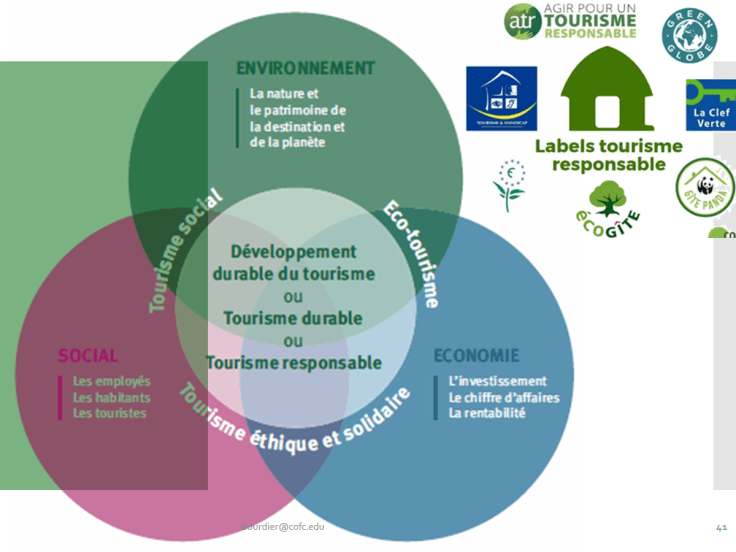


- Protected: Delf A1 – s’entraîner à l’oral
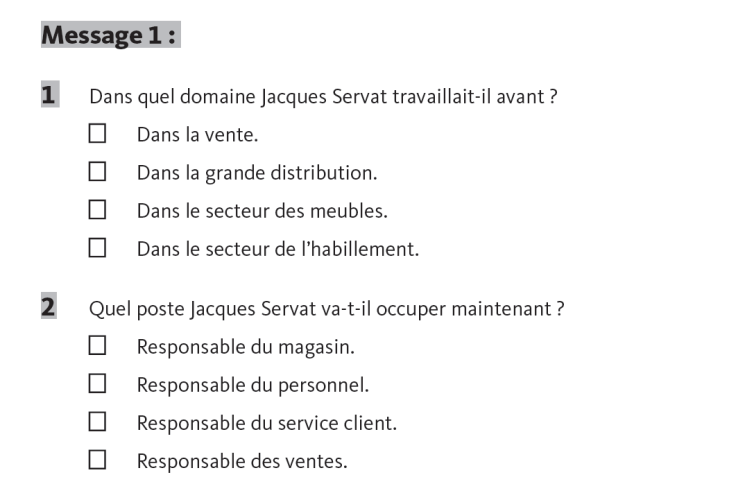
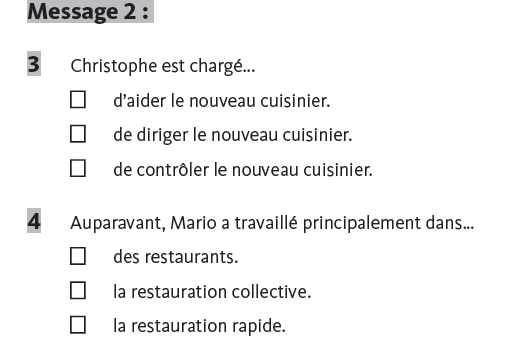
Delf niveau A1, Que comprenez-vous ?
1)
2)
3)
4)
1)
2)
3)
1)
2)
3)
1)
2)
3)
4)
- Protected: Révision 202.13 Les vidéos


Woman in a video conference call in her home office during the coronavirus pandemic 

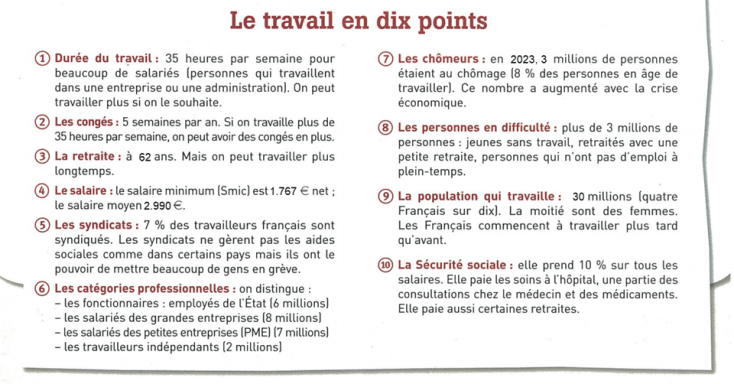



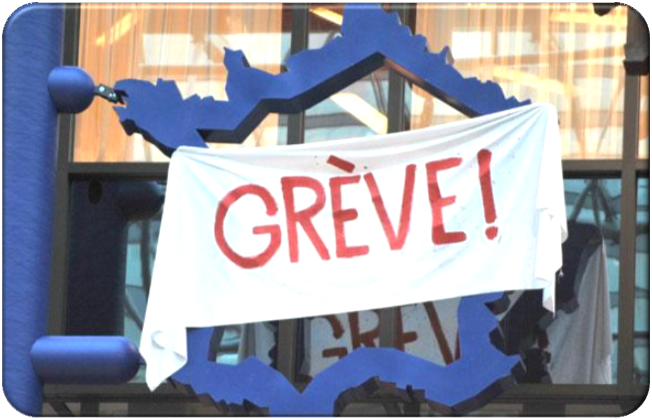
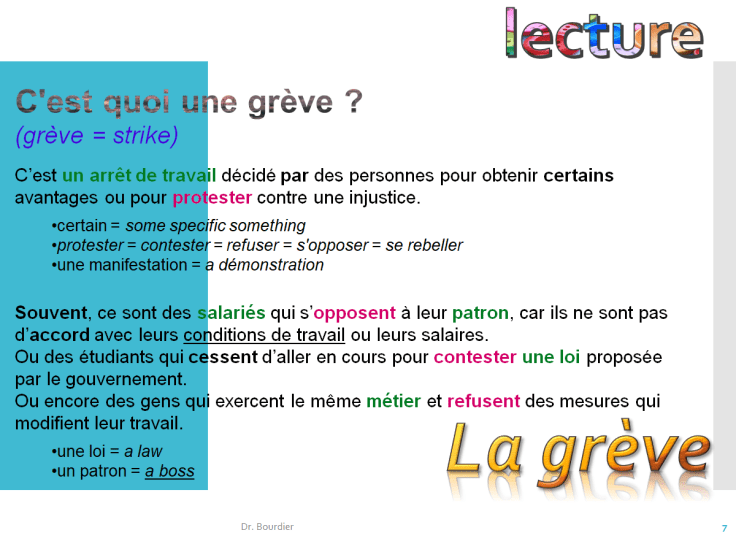
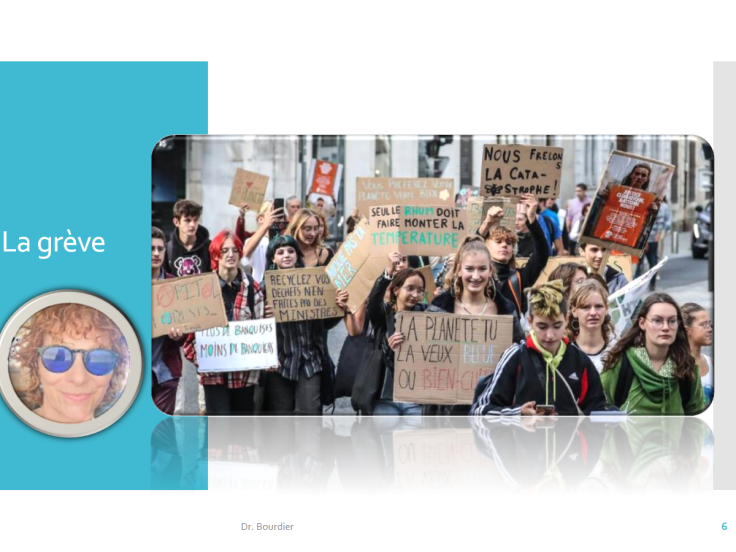
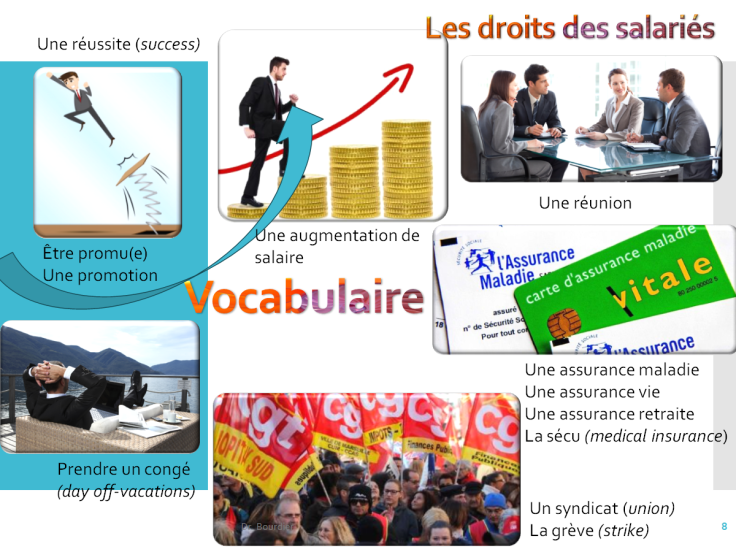
C’est quoi une grève ? (grève = strike)
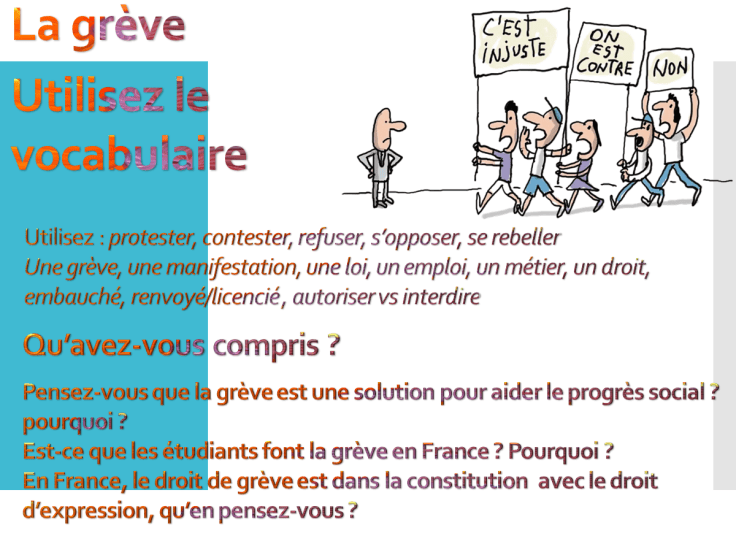
C’est un arrêt de travail décidé par des personnes pour obtenir certains avantages ou pour protester contre une injustice.
- certain = some specific something
- protester = contester = refuser = s’opposer = se rebeller
- une manifestation = a démonstration
Souvent, ce sont des qui s’opposent à leur patron, car ils ne sont pas d’accord avec leurs conditions de travail ou leurs salaires.
Ou des étudiants qui cessent d’aller en cours pour contester une loi proposée par le gouvernement. Ou encore des gens qui exercent le même métier et refusent des mesures qui modifient leur travail.
- une loi = a law
- un patron = a boss

Est-ce que la grève a toujours existé ?
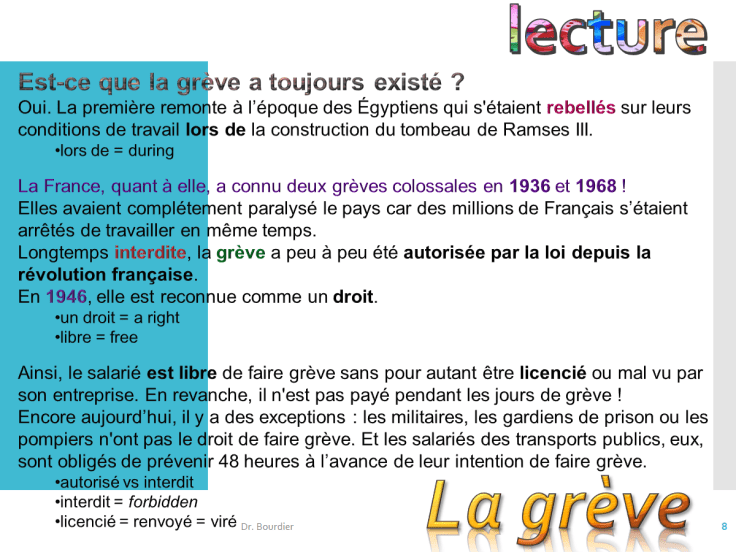
Oui. La première remonte à l’époque des Égyptiens qui s’étaient rebellés sur leurs conditions de travail lors de la construction du tombeau de Ramses III.
- lors de = during
La France, quant à elle, a connu deux grèves colossales en 1936 et 1968 !
Elles avaient complètement paralysé le pays car des millions de Français s’étaient arrêtés de travailler en même temps.
Longtemps interdite, la grève a peu à peu été autorisée par la loi depuis la révolution française.
En 1946, elle est reconnue comme un droit.- un droit = a right
- autorisé vs interdit
- libre = free
Ainsi, le salarié est libre de faire grève sans pour autant être licencié ou mal vu par son entreprise. En revanche, il n’est pas payé pendant les jours de grève !
- interdit vs forbidden
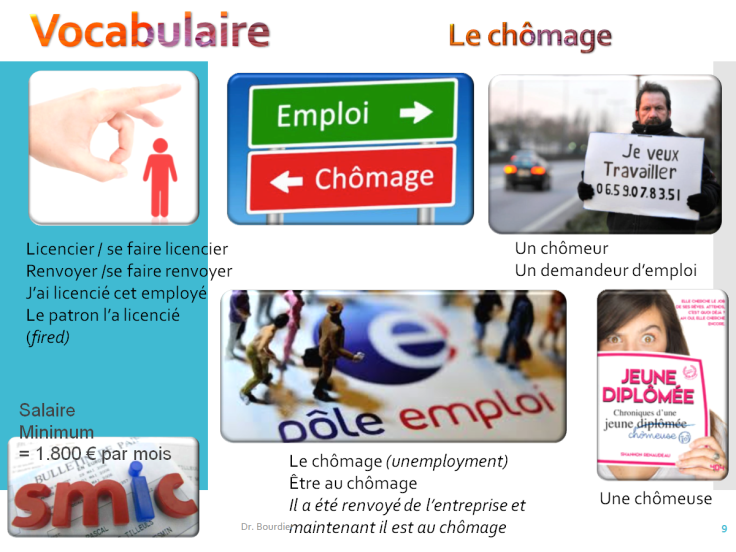
- licencié = renvoyé = viré
Encore aujourd’hui, il y a des exceptions : les militaires, les gardiens de prison ou les pompiers n’ont pas le droit de faire grève. Et les salariés des transports publics, eux, sont obligés de prévenir 48 heures à l’avance de leur intention de faire grève.











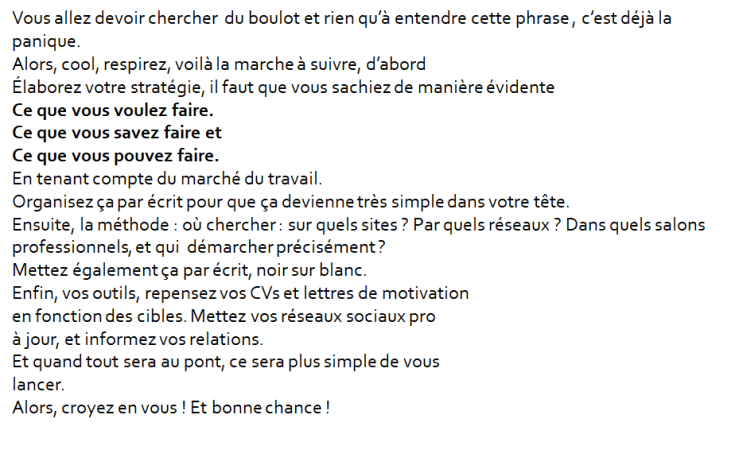
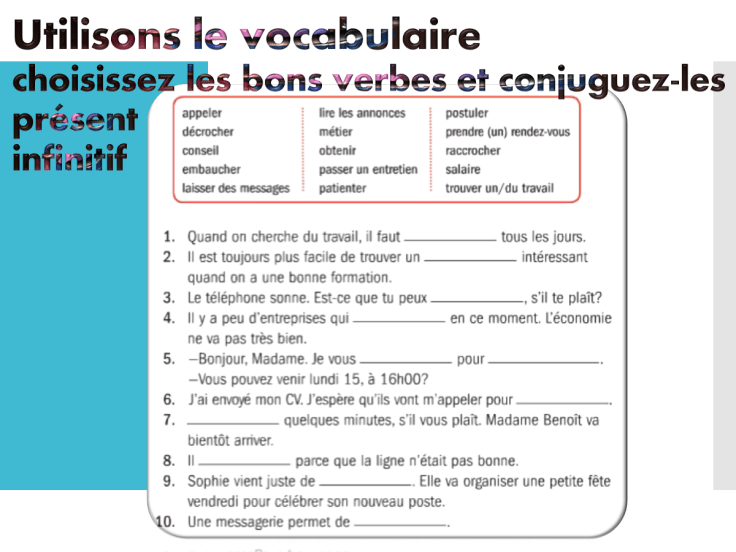
- Protected: Révisions 202.13 entretien d’embauche





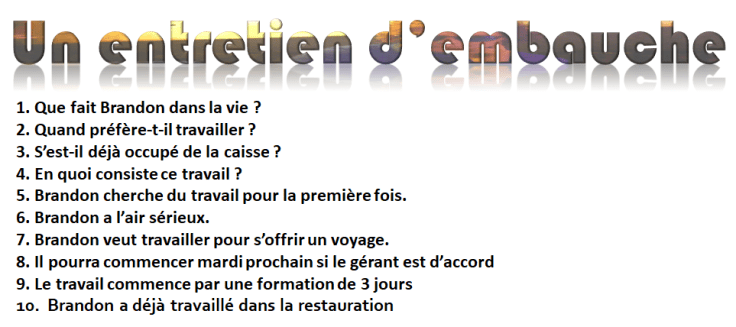

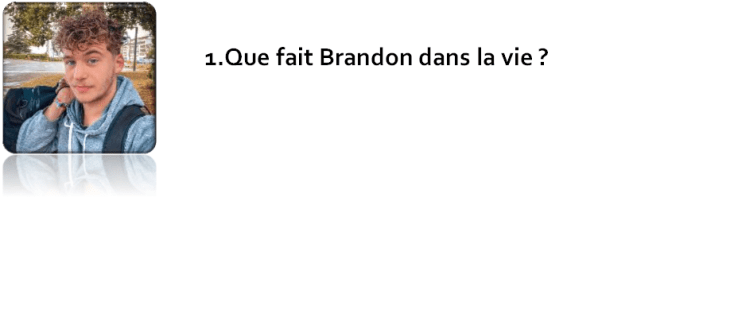
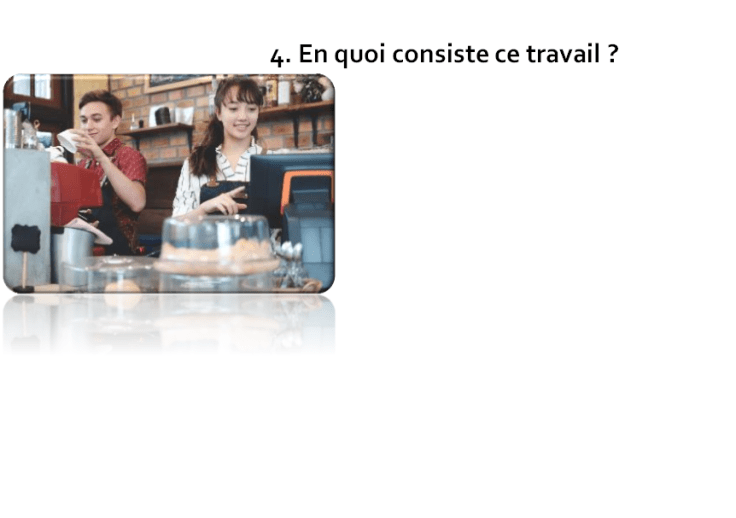




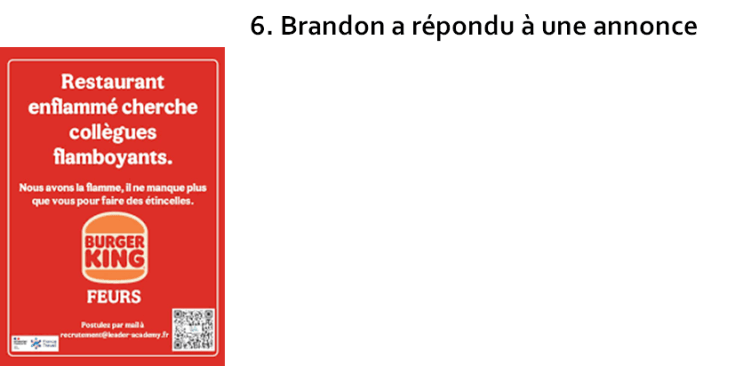
Brandon : Bonjour, je suis Brandon Chevalier. Je viens pour l’entretien (interview).
Francine : Ah, c’est vous. Bonjour, je suis Francine Charles. L’entretien devait se faire avec Monsieur Marc, mais il a eu un empêchement. Nous le ferons donc sans lui. Alors, nous avons bien reçu votre CV et votre lettre de motivation. Vous avez l’air d’avoir très envie de travailler pour nous. Vous pouvez développer un peu sur ce sujet ?
avoir l’air
avoir envie
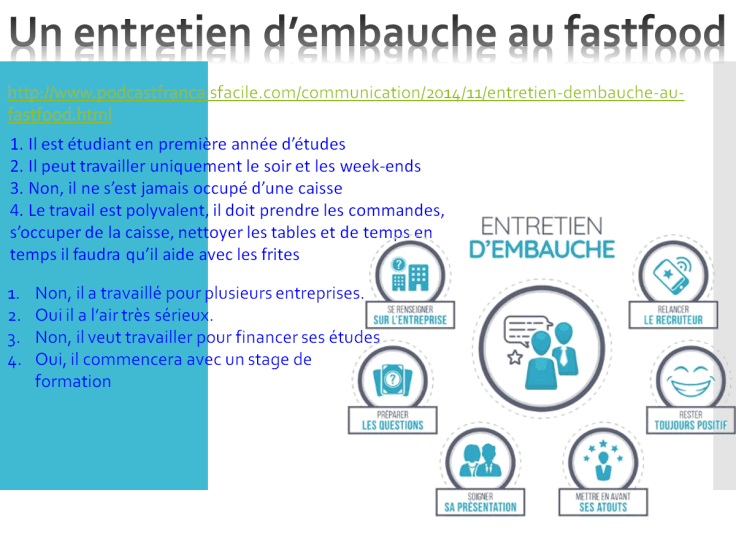
Brandon : Oui, en fait, je suis actuellement étudiant…
Francine : Vous êtes en première année, c’est ça ?
Brandon : Oui, en première année d’anglais. Et j’ai besoin de travailler pour financer mes études. Je ne savais pas si vous cherchiez quelqu’un ou non, mais j’ai tenté ma chance. (savoir : to know, I did not know if you were looking for)Francine : Et vous avez bien fait. Est-ce qu’il y a une raison particulière qui a motivé votre candidature ou bien avez-vous envoyé des dizaines de lettres à droite à gauche ? (here and there)
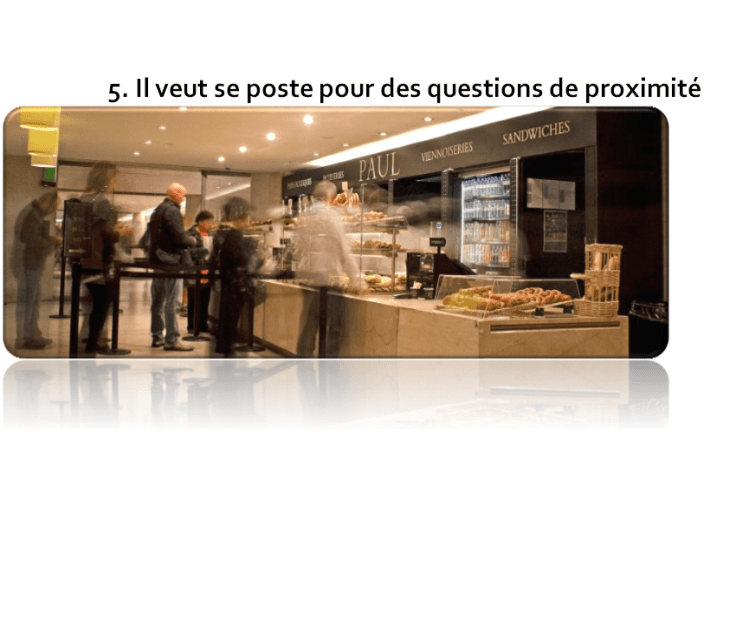
Brandon : En fait, j’habite juste à côté… alors, ce serait très facile pour moi de venir et pour vous de faire appel à moi en cas de besoin. Et puis, je sais que dans la restauration rapide, les horaires sont très souples (flexible time schedule).
les horaires : schedule
Francine : C’est vrai. Ça ne vous dérange (bother) pas de travailler le soir et les week-ends ?
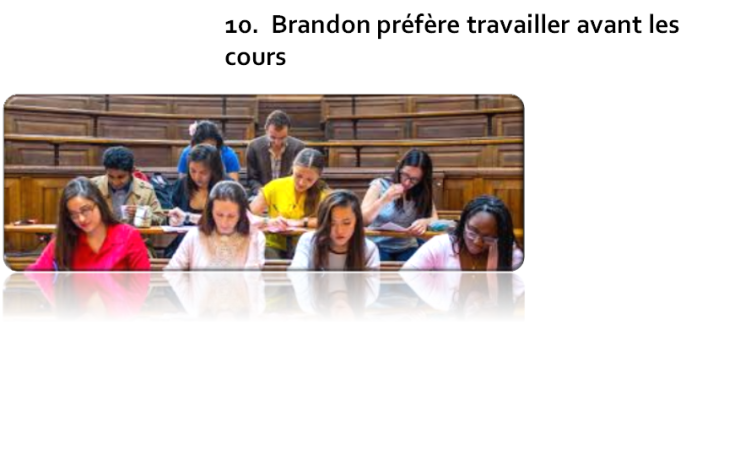
Brandon : Et bien, pour dire la vérité, je préférerais ne travailler que les soirs et les week-ends. Je pourrais ainsi bien gérer (manager) mon temps pour mon travail et mes études. (conditionnel)Francine : Vous savez que ce ne sera pas facile de tenir le rythme. (futur)
Brandon : J’en ai conscience, mais je fais ça depuis ma terminale.
Francine : Je vois dans votre CV que vous faisiez de l’intérim. (imparfait = used to)Brandon : Oui, pour plusieurs entreprises. Les horaires changeant continuellement, je voudrais travailler dans un seul endroit pour me concentrer plus facilement.
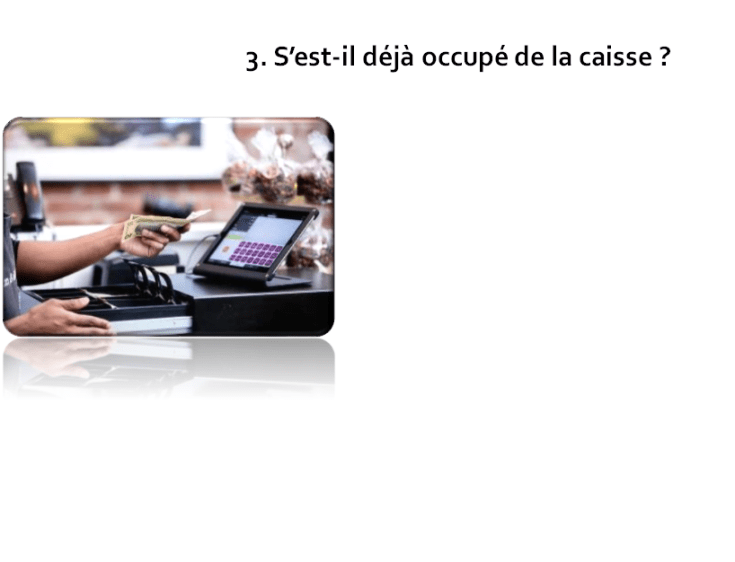
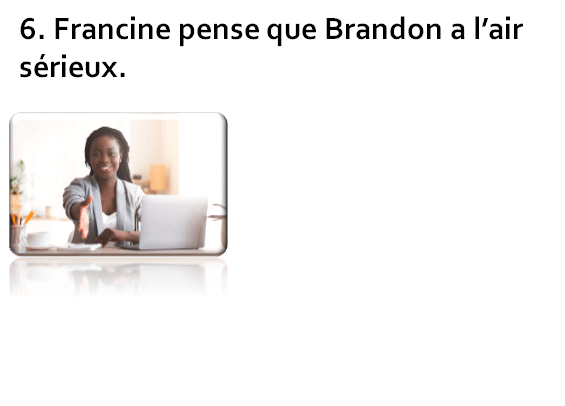
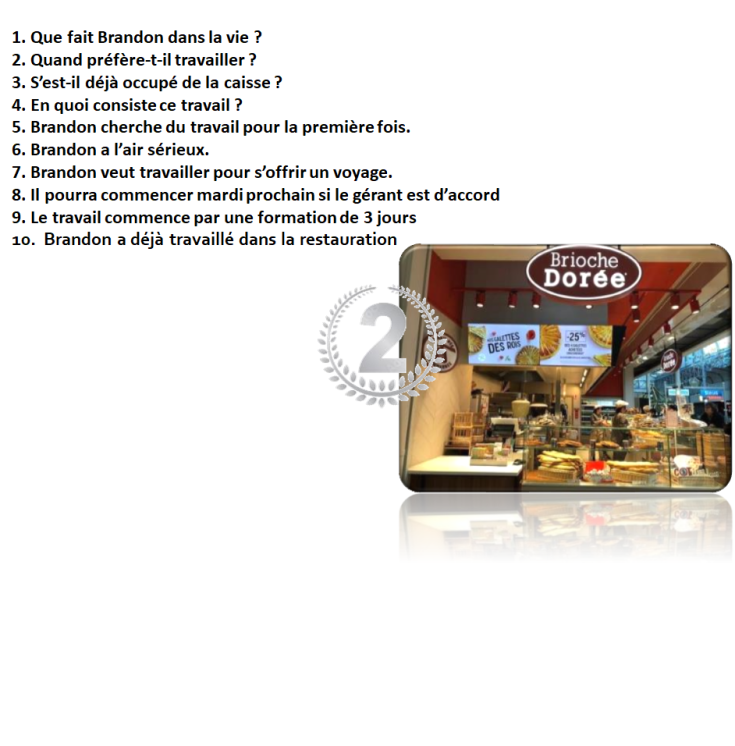
Francine : Bien, vous m’avez l’air sérieux. On cherche un équipier (équipe = team) pour s’occuper de la caisse. Vous avez déjà fait ça ?
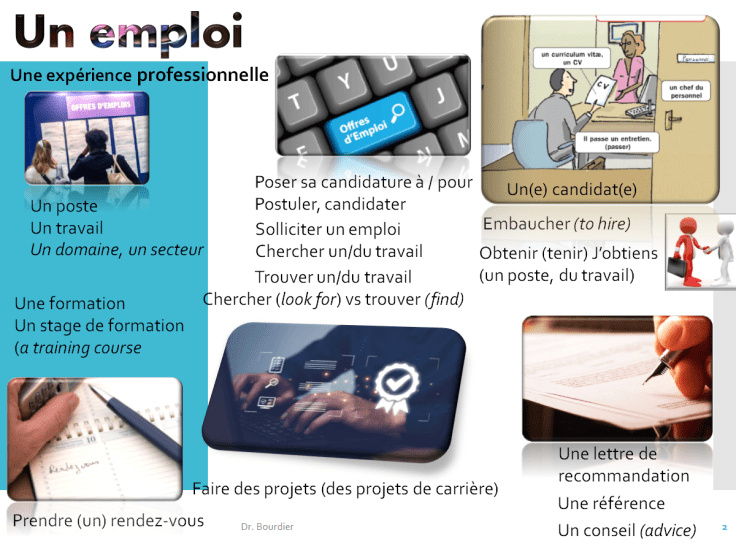
une équipe : a teamavoir conscience de : to be aware of
Brandon : Non, jamais.
Francine : Et bien tant mieux. On vous apprendra. Vous pourriez commencer quand ? (futur, conditionnel)Brandon : Je suis prêt même maintenant.
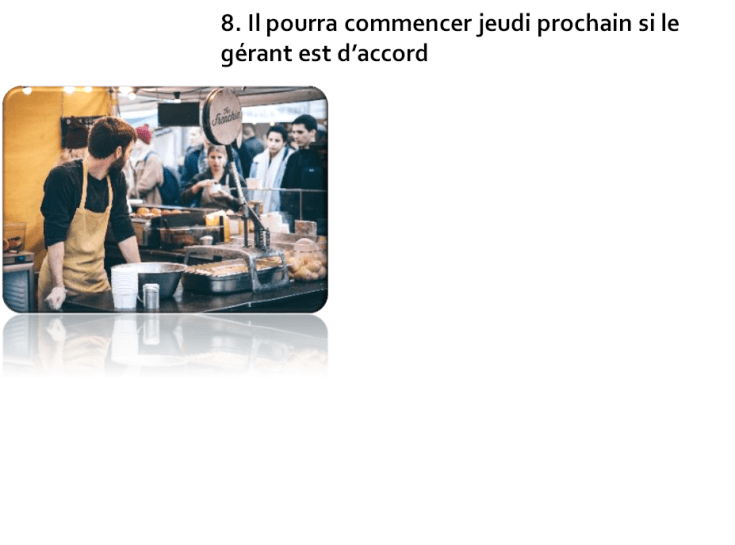
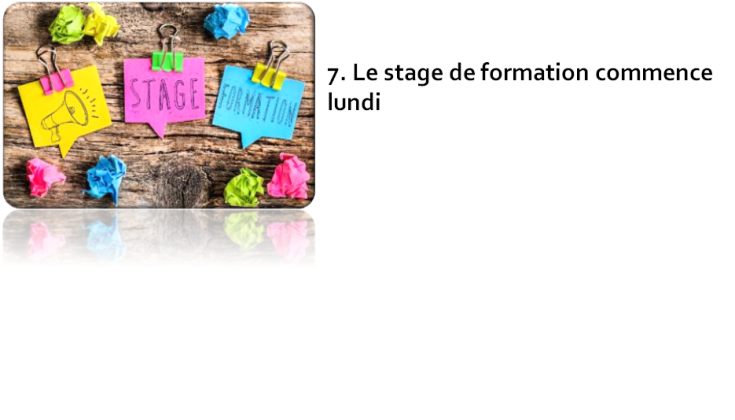
Francine : D’accord, je dois d’abord en parler au gérant (manager). Mais si ça le fait, on pourrait commencer lundi prochain. Il y a une formation de trois jours.
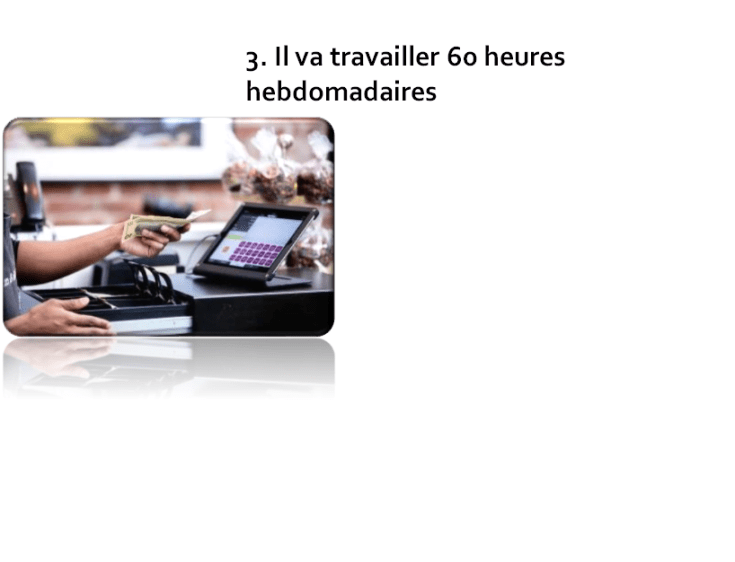
Si au bout de ces trois jours, vous souhaitez toujours travailler pour nous, alors nous pourrons vous proposer un CDI de 60 heures par mois.
CDI contrat à durée indéterminée (permanent)
CDD contrat à durée déterminée (temporary)
Brandon : 60 heures ?
Francine : On discutera de la répartition des heures en fonction de nos besoins et de votre emploi du temps.
l’emploi du temps
Brandon : D’accord…
Francine : Vous avez des questions ?
Brandon : Oui, ce travail consiste seulement à encaisser ?
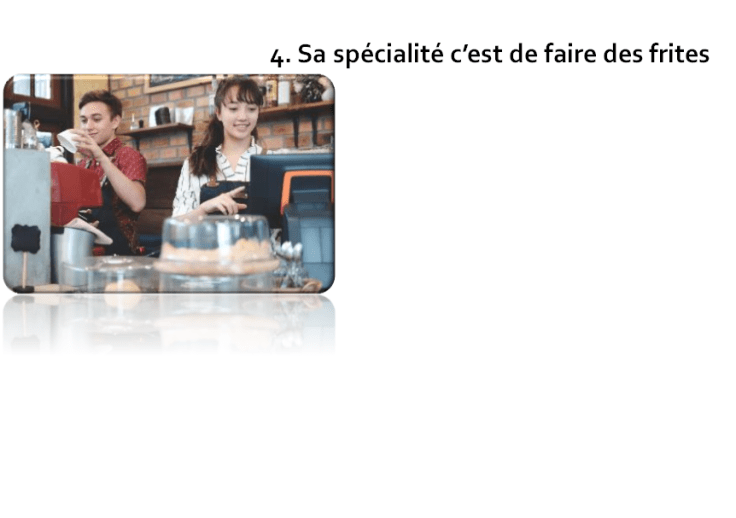
Francine : Oui et non, c’est un travail très polyvalent. Au moment du rush, vous prenez la commande, vous servez et vous encaissez. Avant et après, quand il n’y pas de client, vous devez faire un tour en salle pour nettoyer les tables. Quelquefois, on vous demandera d’être aux frites. Enfin, vous verrez tout ça dans la formation.
un travail polyvalent
une formation
Brandon : D’accord.
Francine : Bien, alors, je vous confirme avant demain pour le stage. Je pourrai compter sur votre présence lundi pour le stage ?
un stage : internship or trainingBrandon : Oui, lundi, sans problème.
Francine : Merci. Et bien, je vous souhaite une bonne journée.
Brandon : Bonne journée à vous aussi. Merci. Au revoir.
Francine : Au revoir.Plus de questions !


- Protected: Revisions pour le placement test for Global Scholar
Understand Levels of Competencies
Révision de l’unité 13
Révision 202.13 lectures culture
Révisions 202.13 médias – entretien d’embauche (compréhension orale et compréhension écrite)
Révision 202.13 Les vidéos de l’unité (compréhension orale et écrite)
Révision de l’unité 14
Révision de L’oral
Delf A1 – s’entraîner à l’oral
Révision Delf (B1)
380, préparation au Delf (les posts de préparation)
- 380, Delf B1-B2 production orale épreuve 2021 a)
- 380, Delf B1-B2 production orale épreuve 2022 b)
- 380, Delf B1-B2 production orale épreuve 2021 c)
- 380, Delf B1-B2 production orale épreuve 2021 d)
- 380, Delf B1-B2 production orale épreuve 2021 e)
- 380, Delf B1-B2 production orale épreuve 2021 f)
380, Delf B1-B2 production orale
380 Delf B1-B2, Compréhension orale A
- 380 Delf B1 Vidéo C- Compréhension, le commerce en ligne
- 381 Delf B1 Vidéo B- Compréhension, le télétravail
- 380 Delf B1 Vidéo A- Compréhension, la Génération Numérique
Révision
201, SP 2020 (Unit 09/10/11/12)
- Protected: Révision 202.13 lectures culture
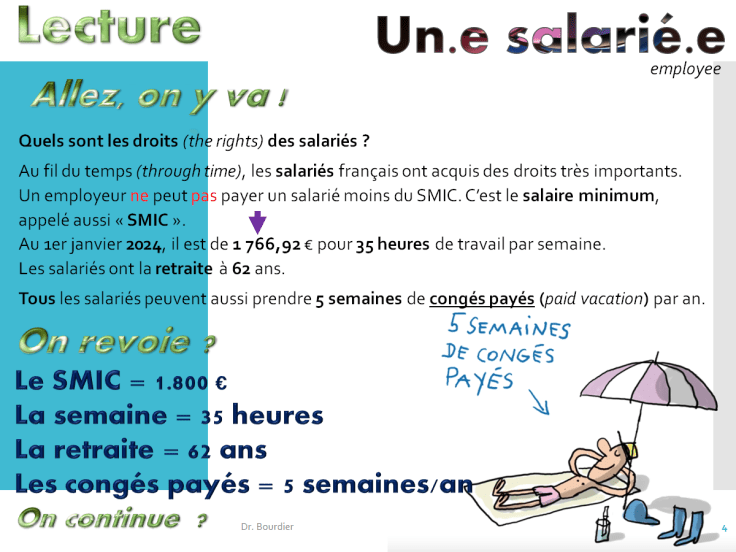
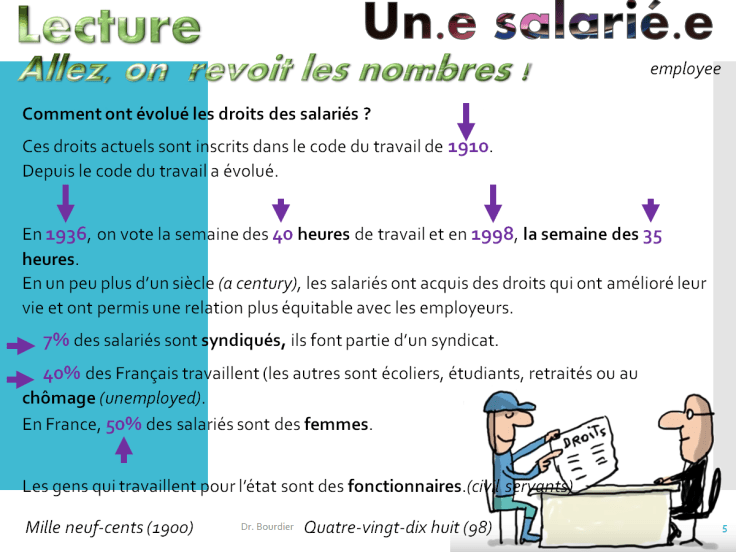
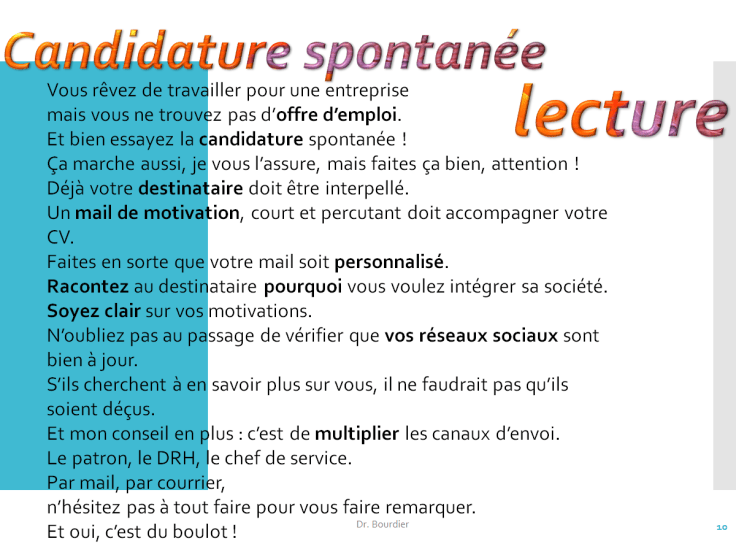
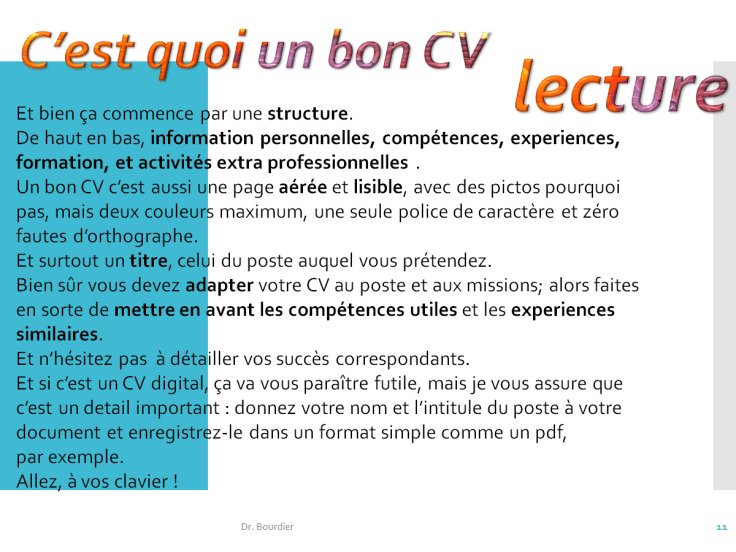
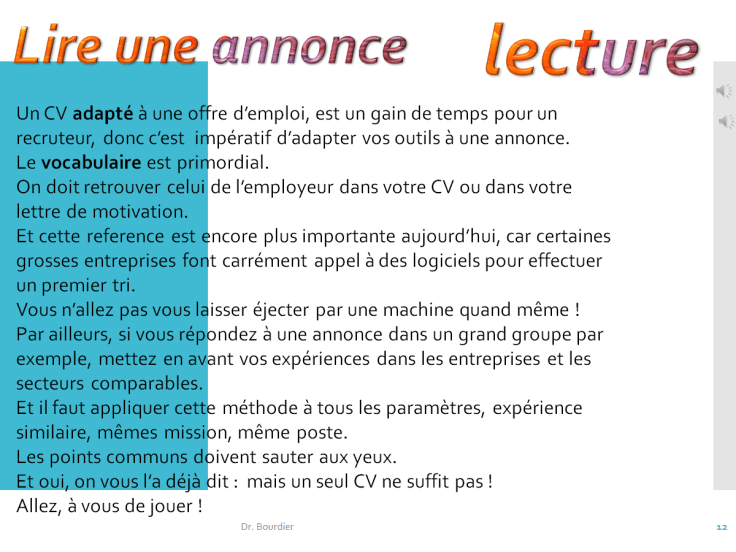
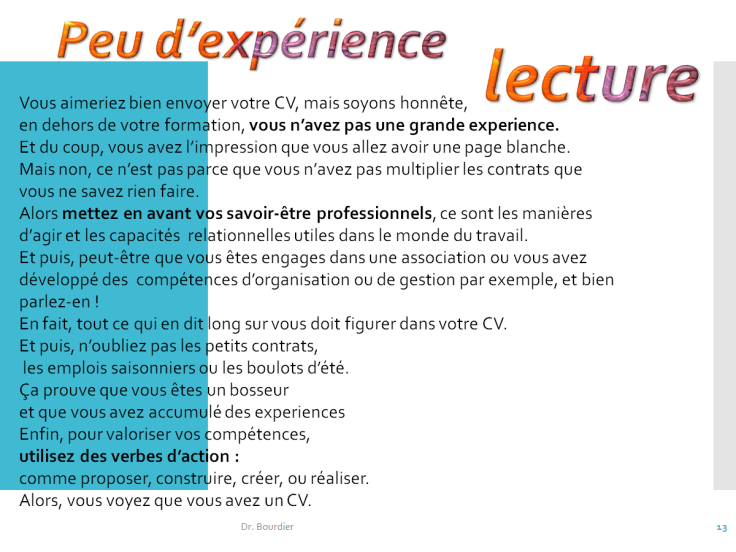

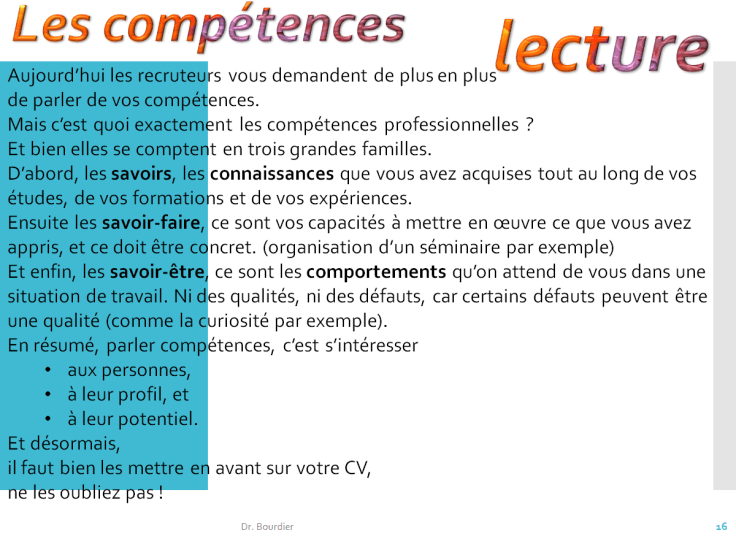
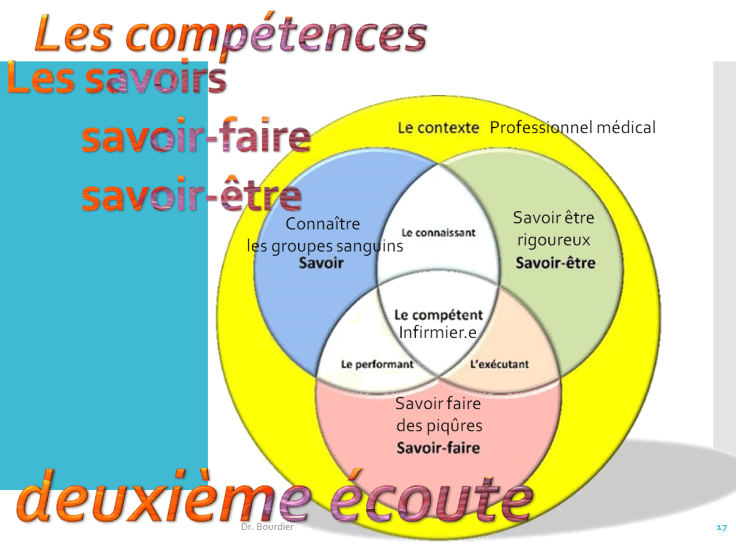
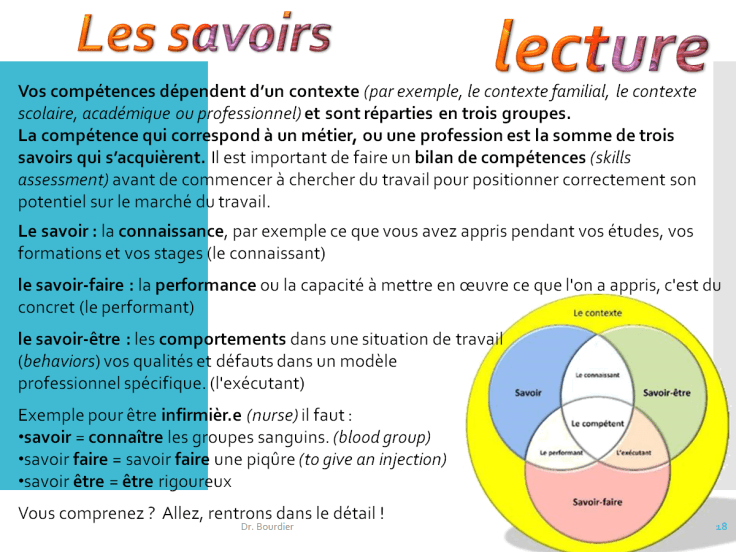
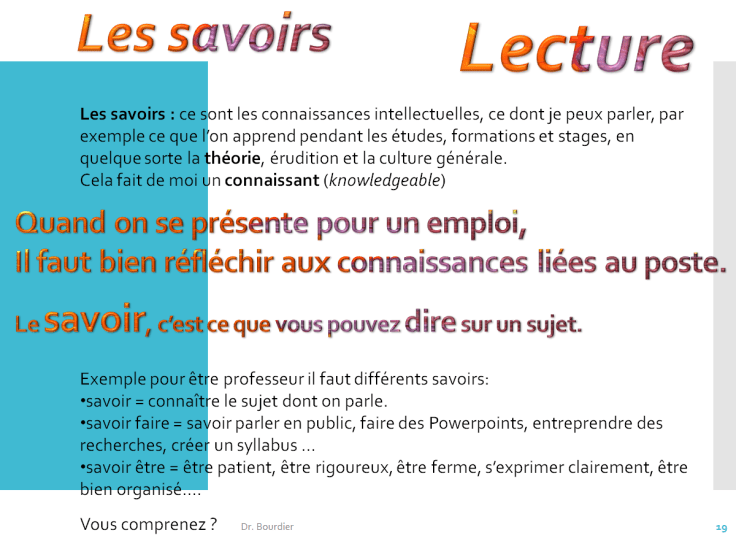

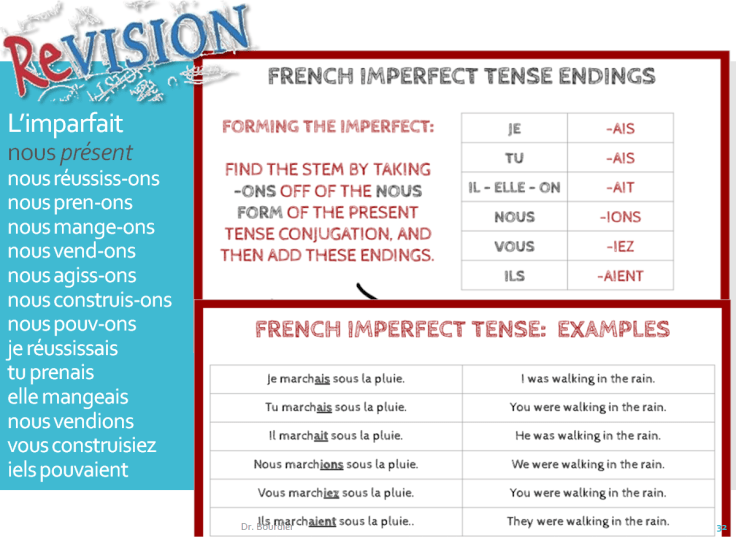
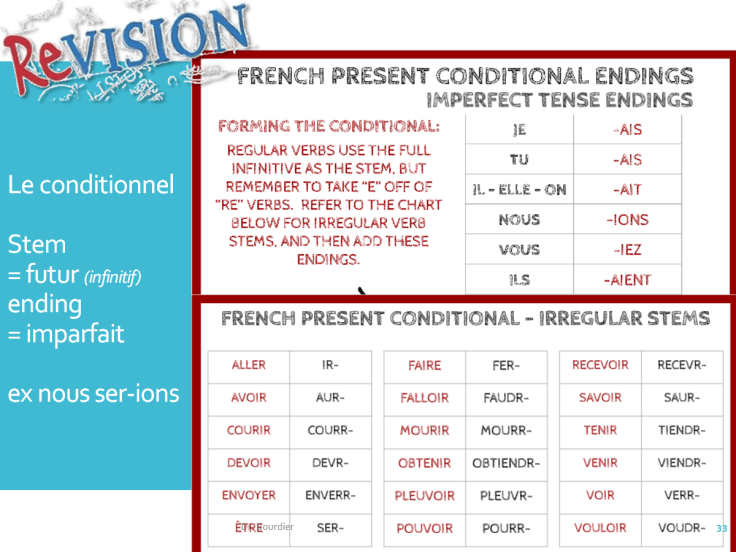
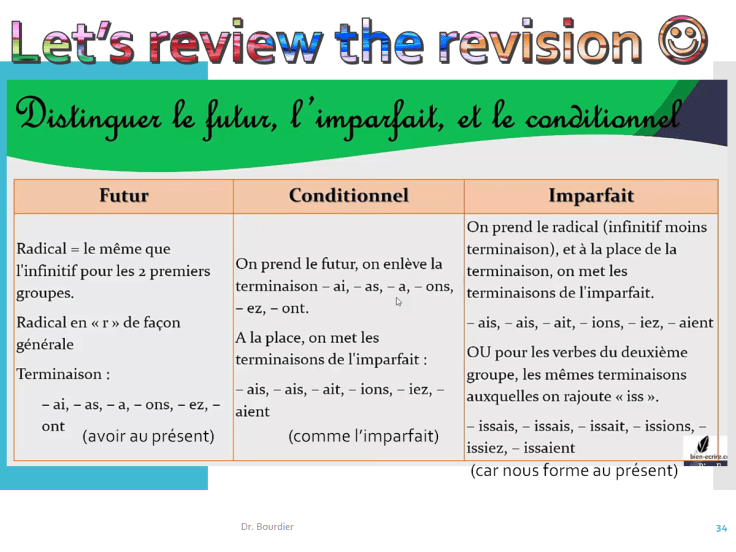
- Protected: Revision 202.13 Grammaire

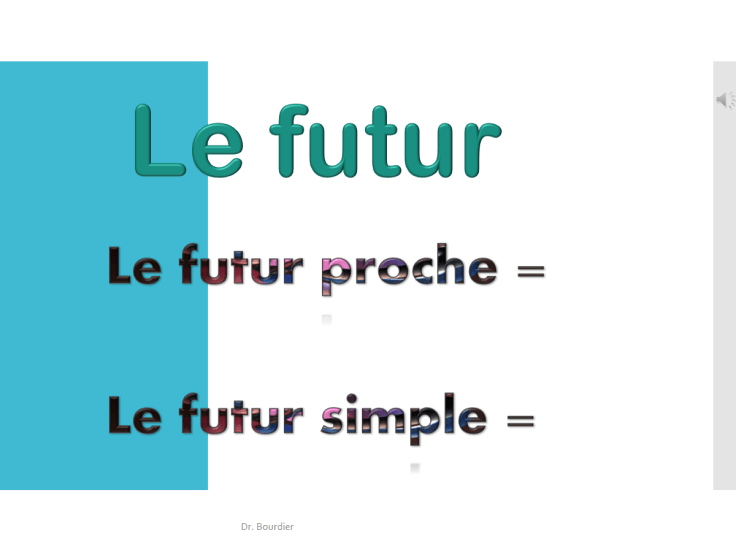
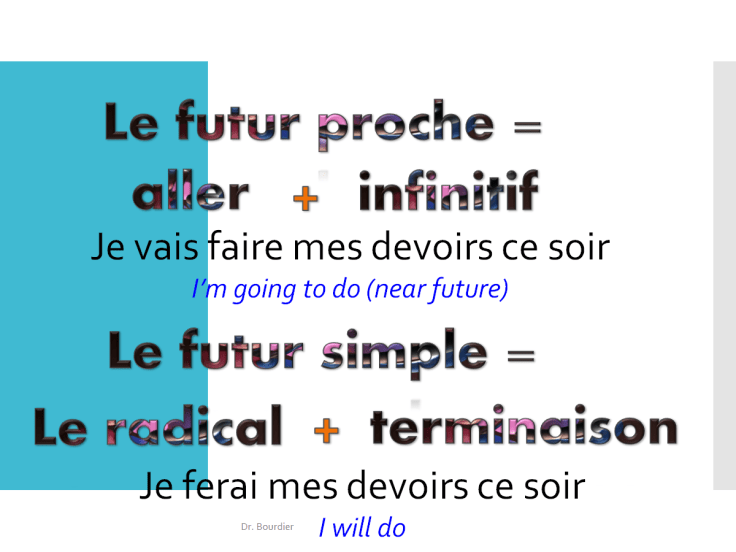
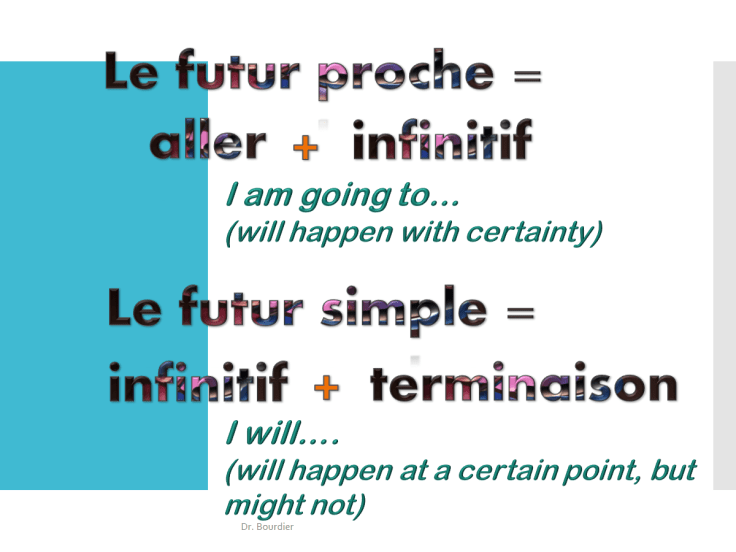
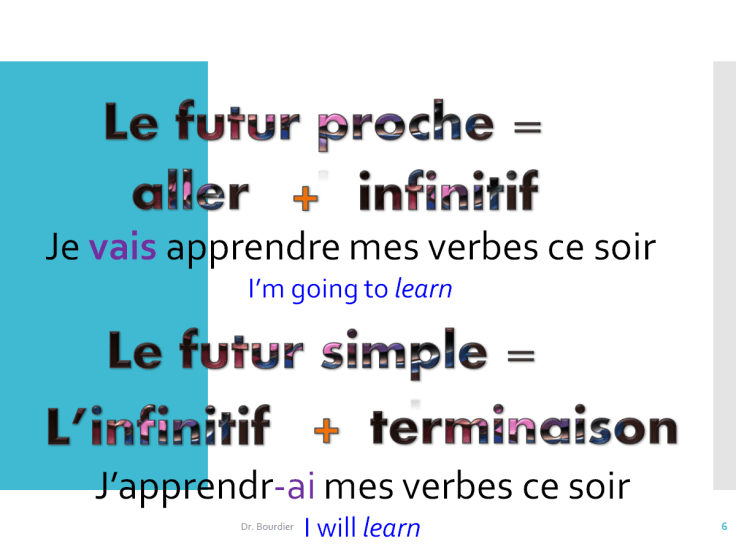
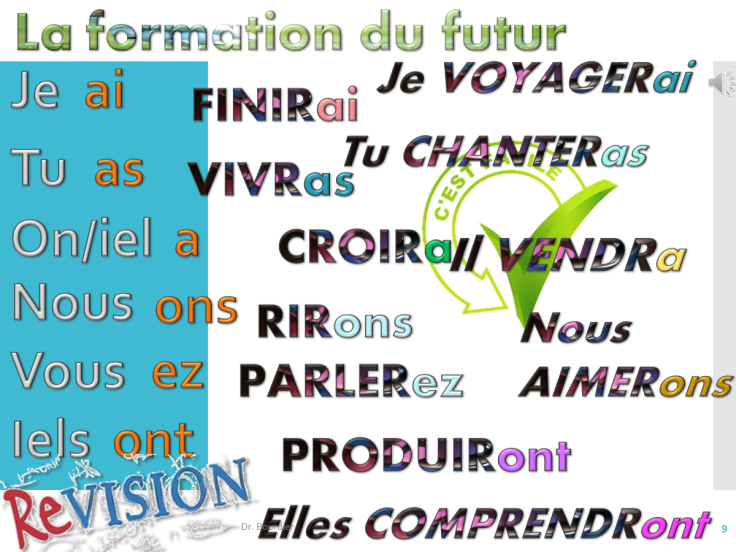
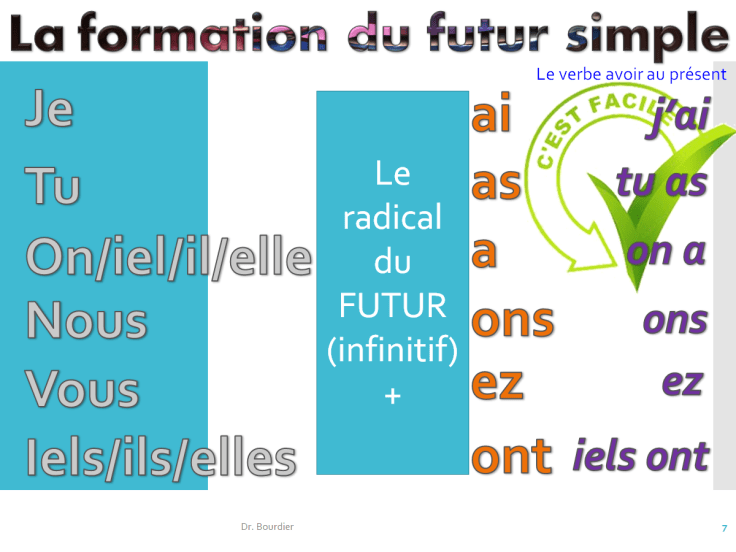
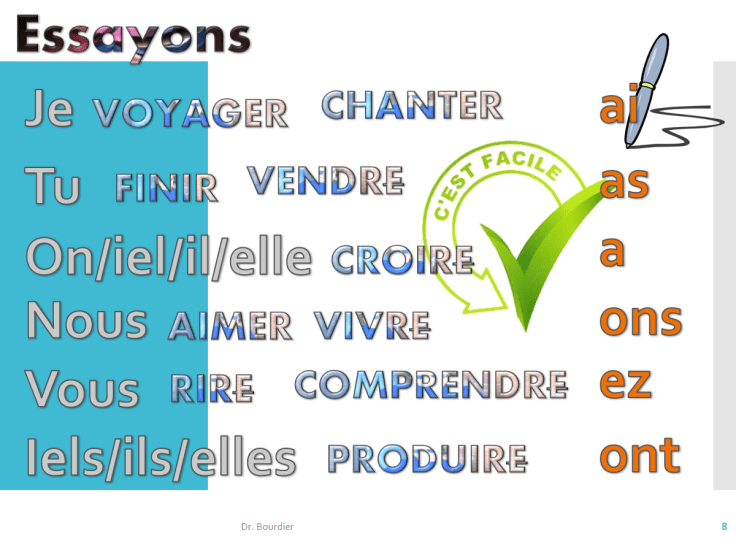
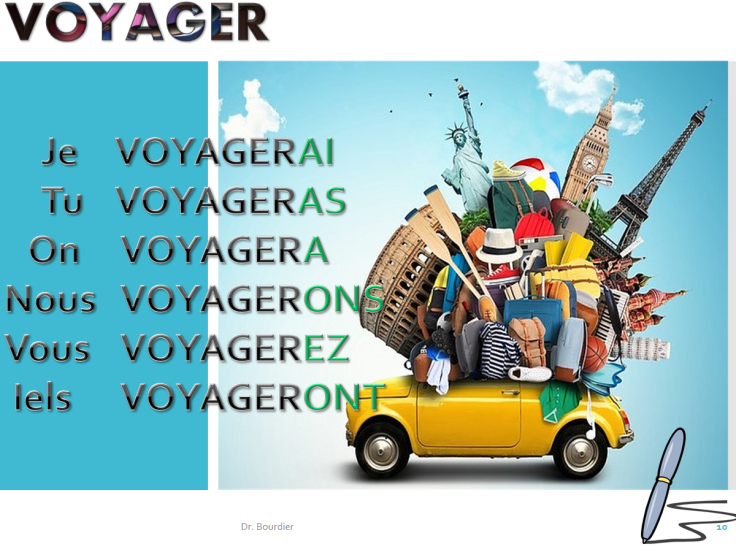
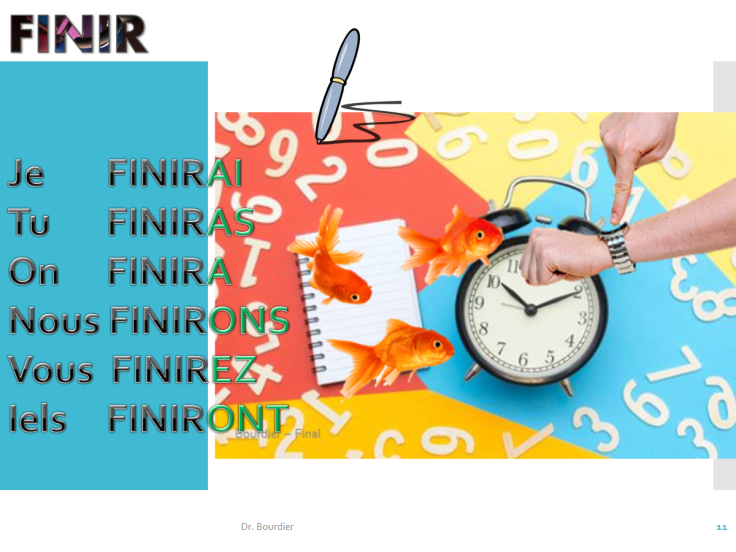
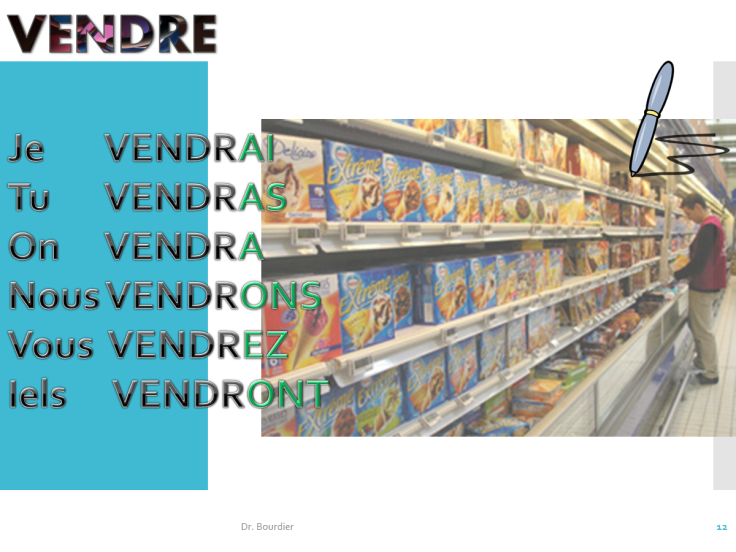
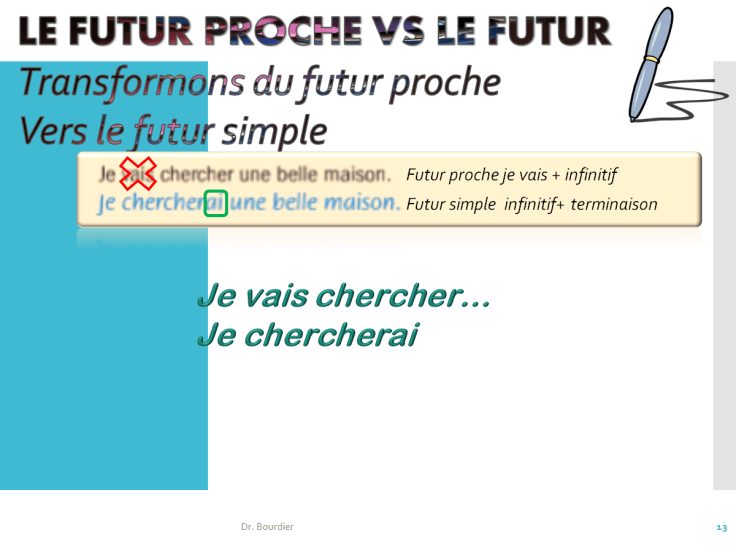
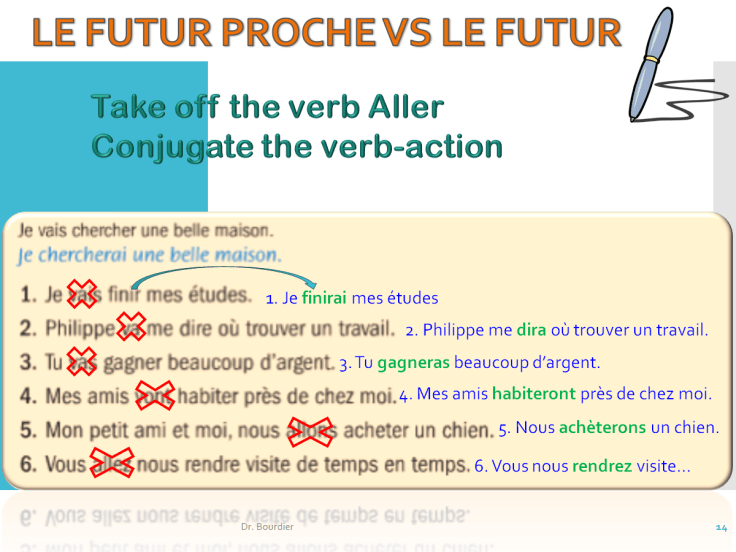
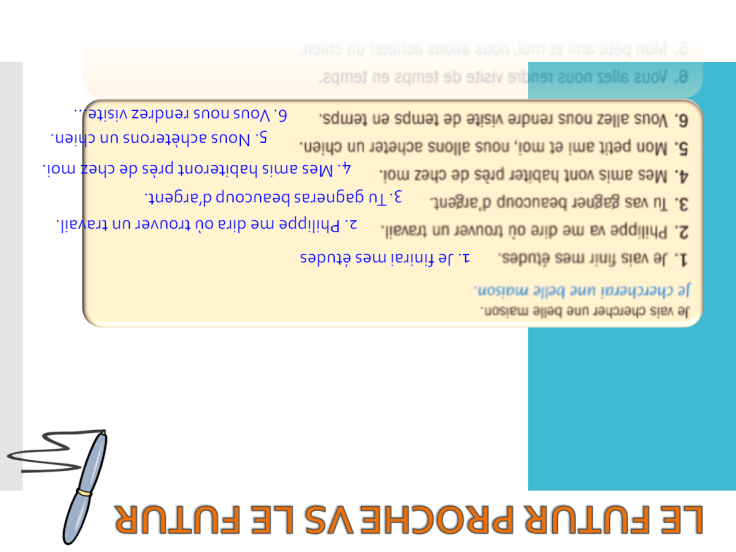
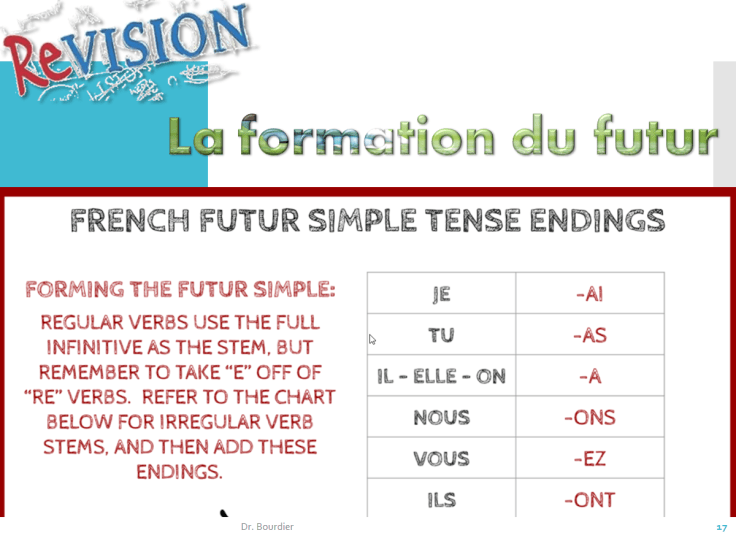
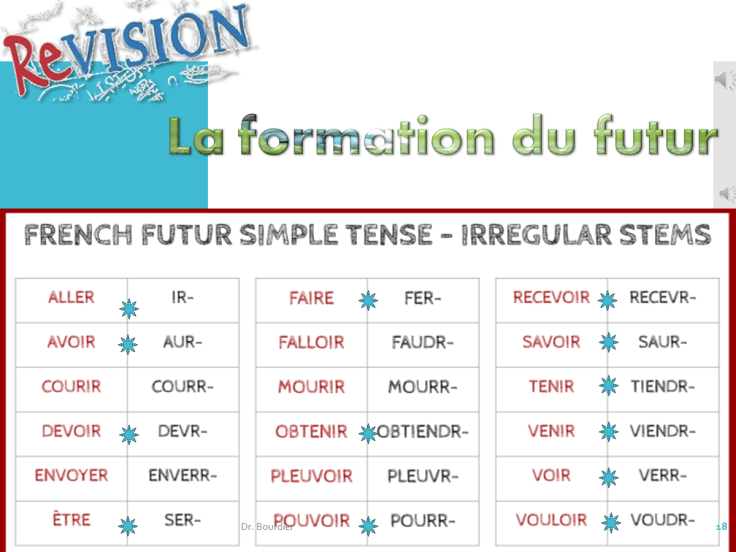
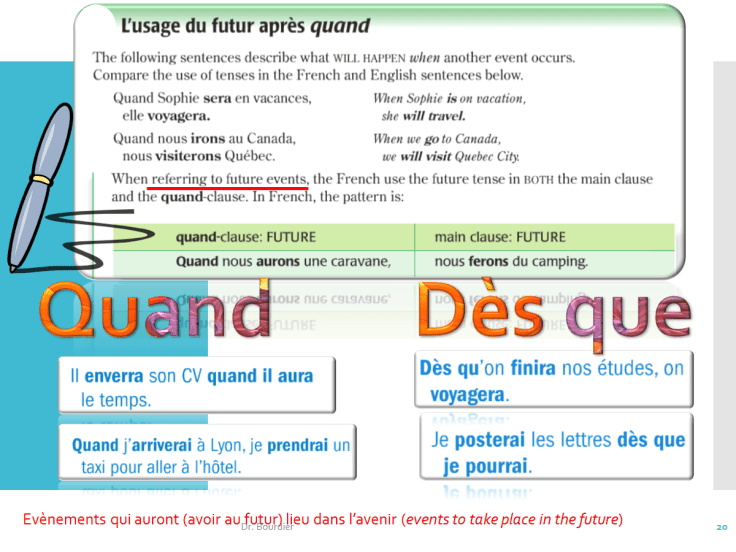
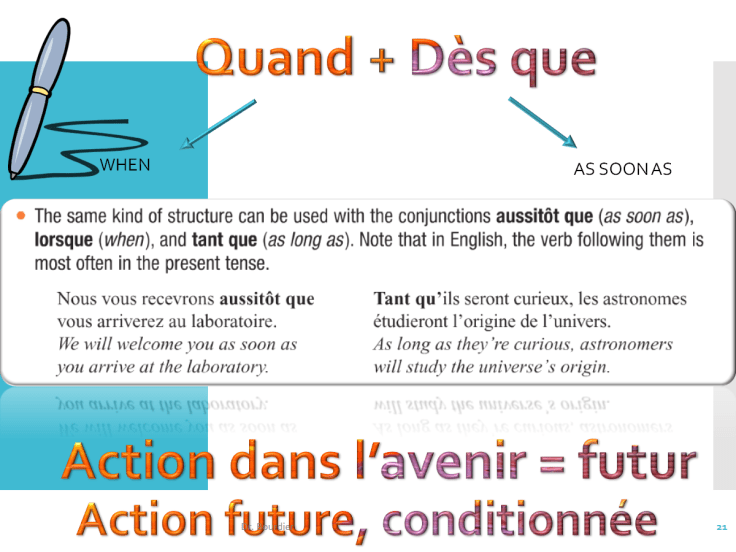
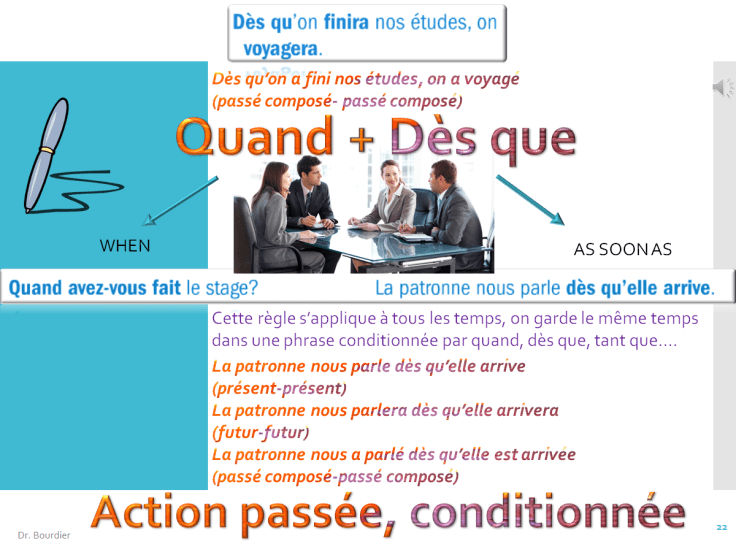
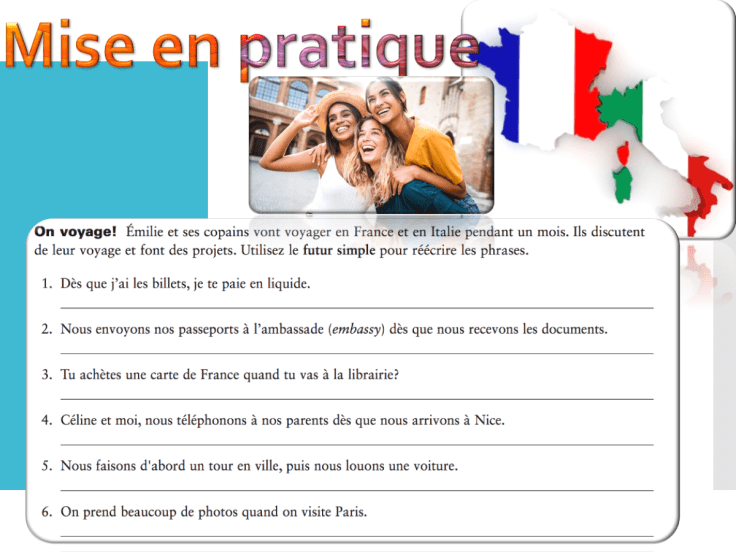
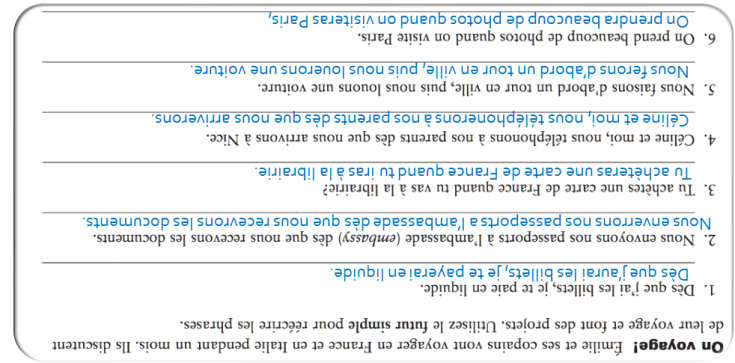
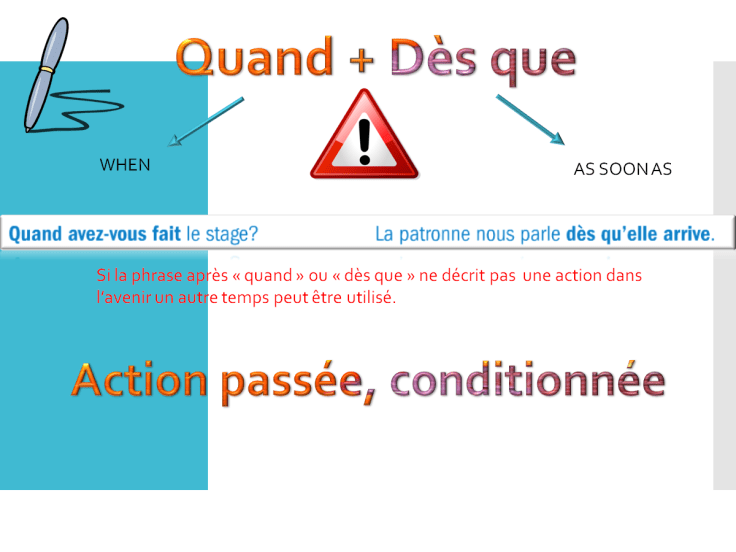
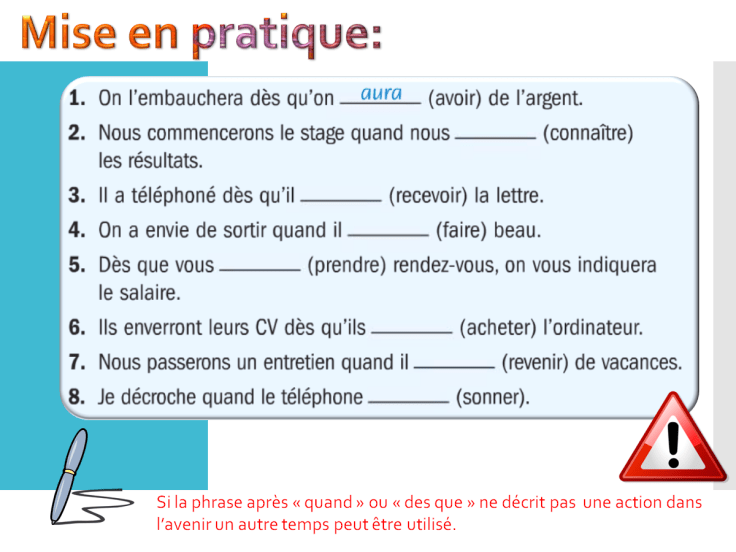
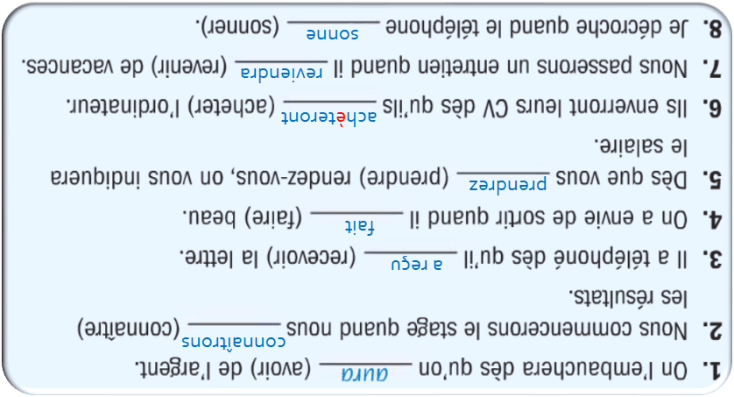
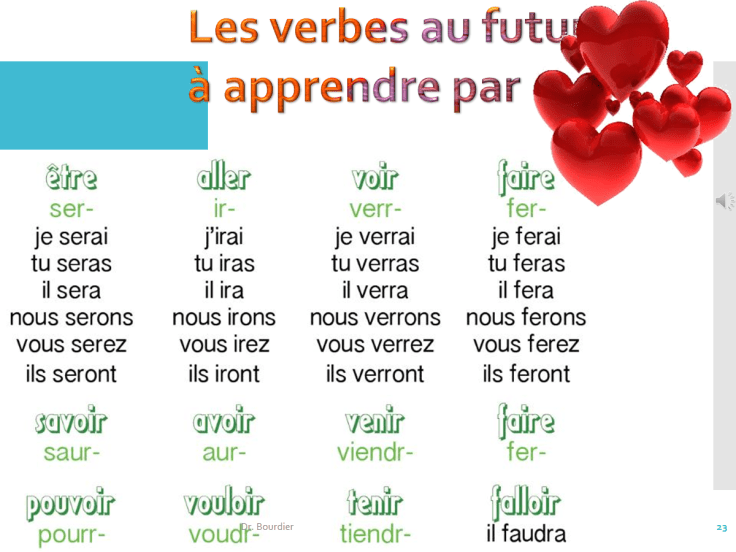
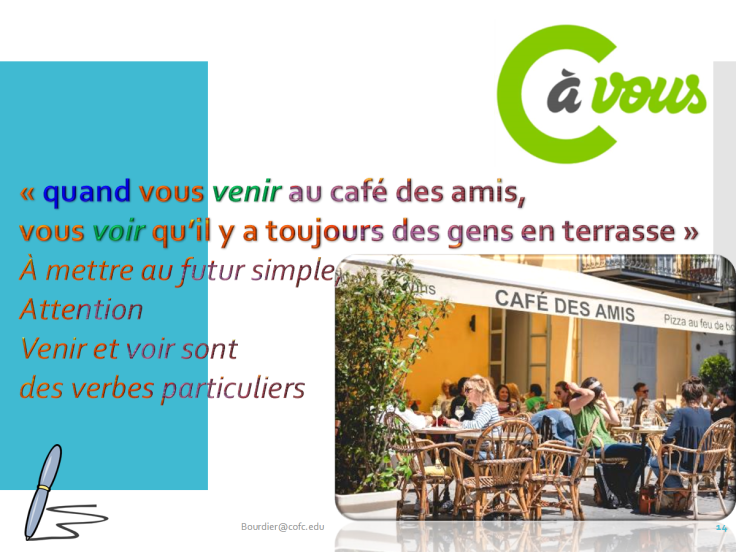
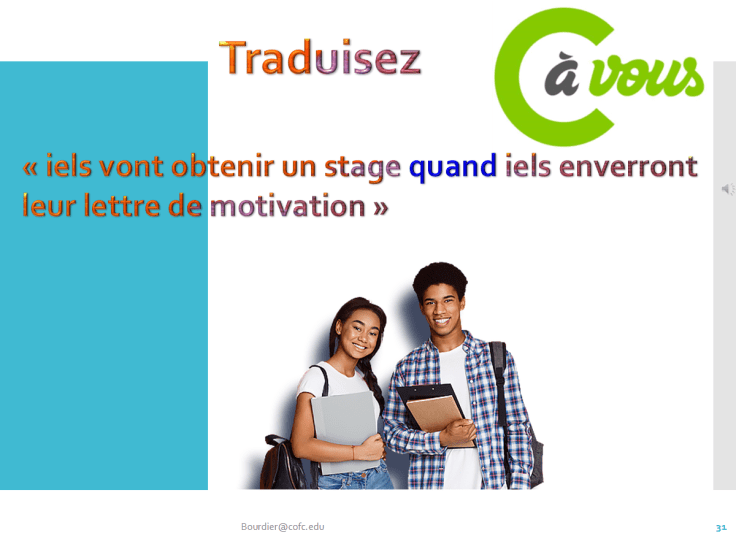
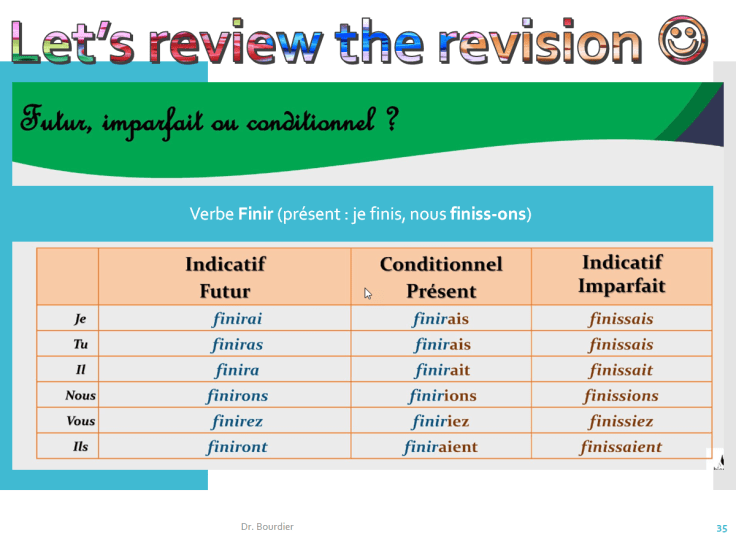
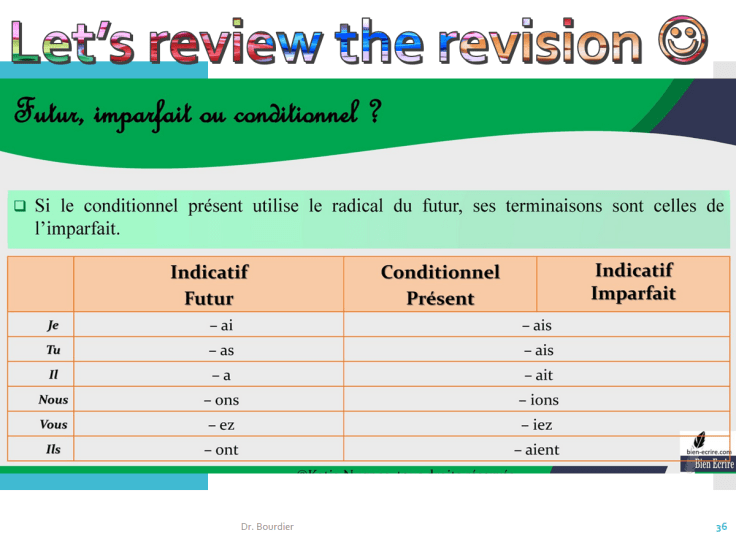
1) le futur simple, le futur proche, quand dès que
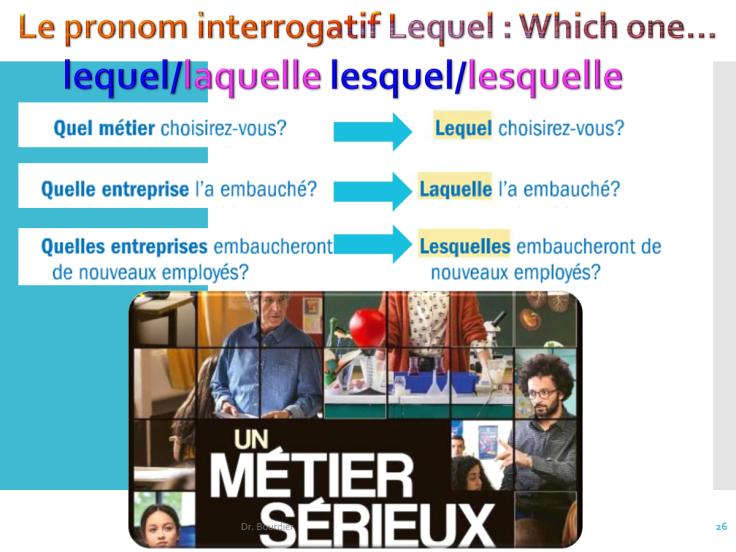
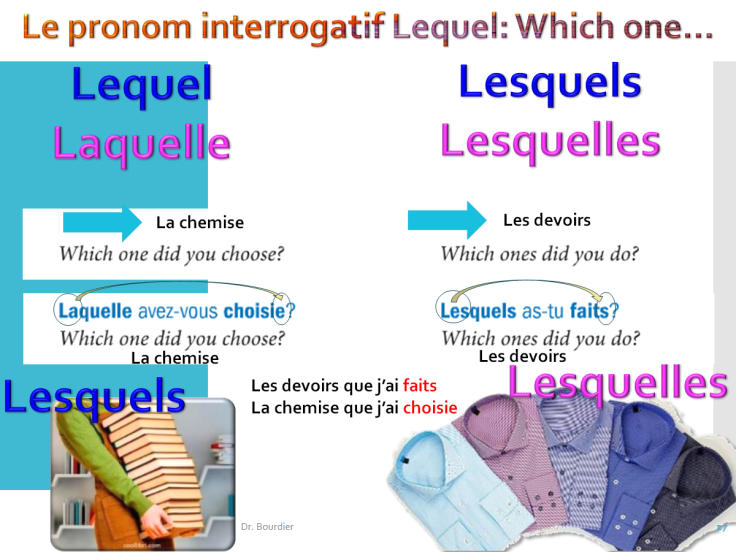
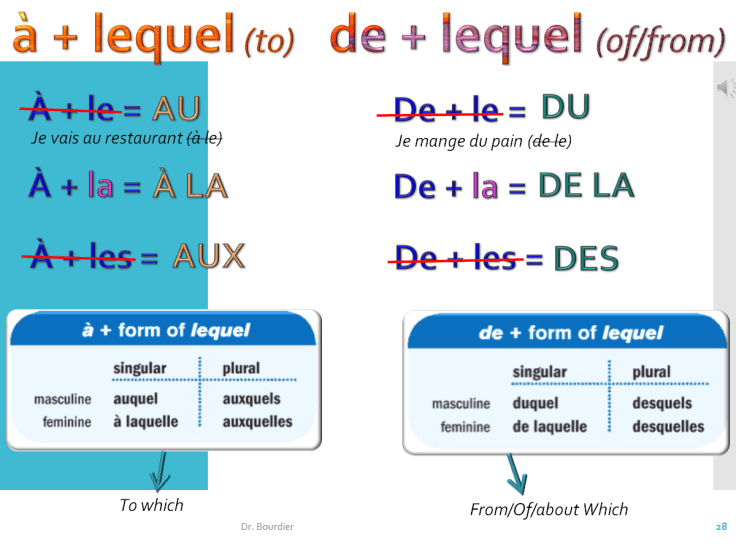
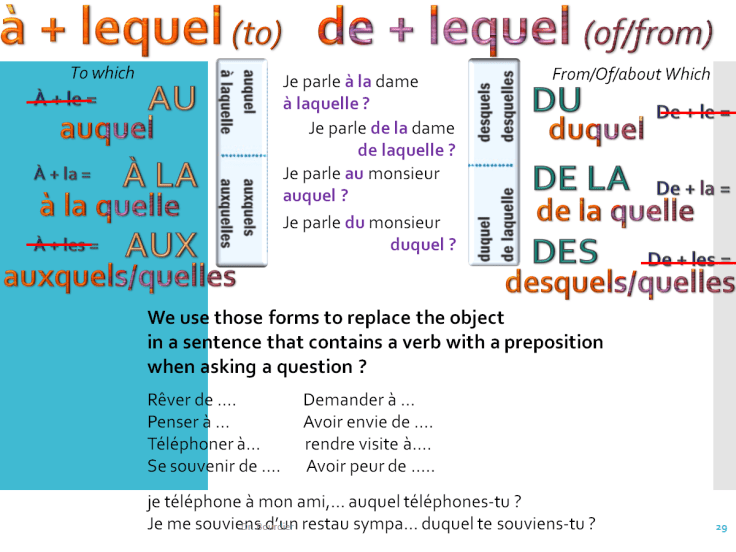
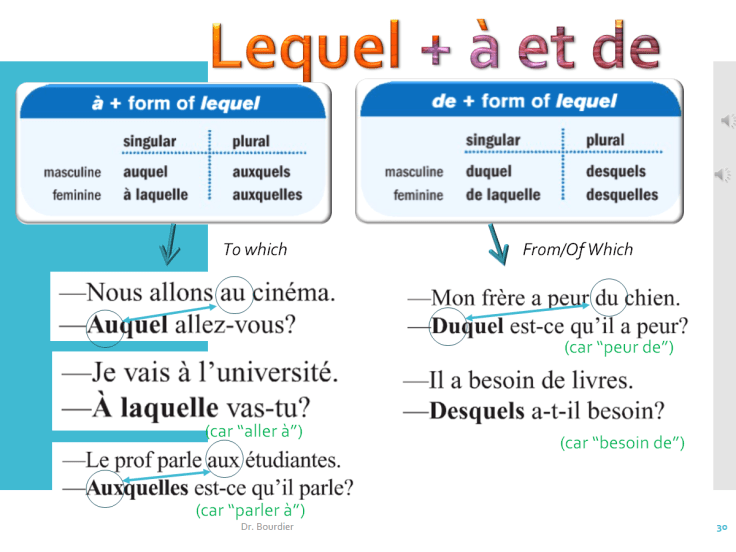
2) Lequel, laquelle, lesquels, lesquelles
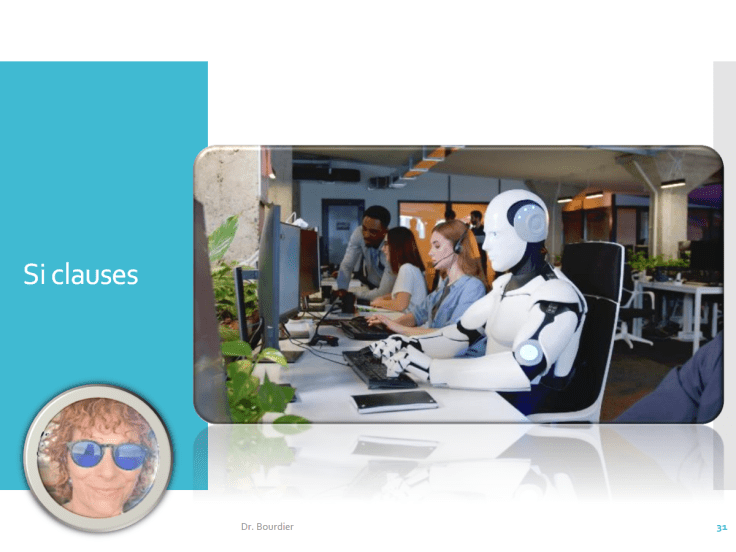
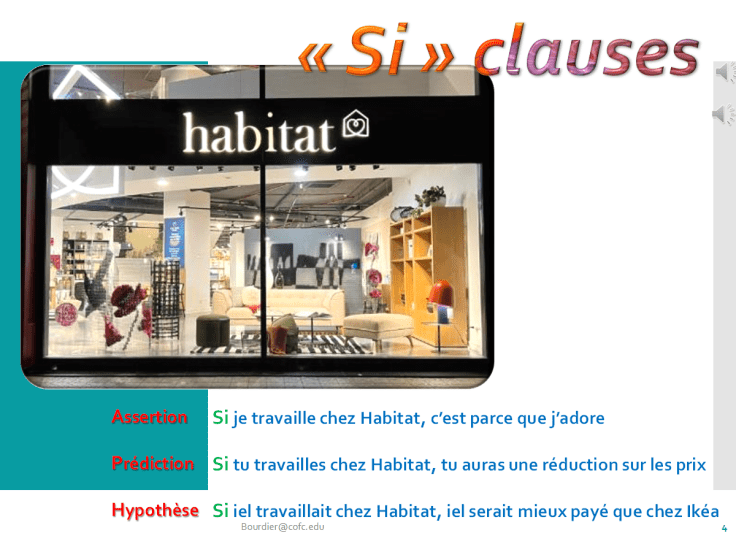
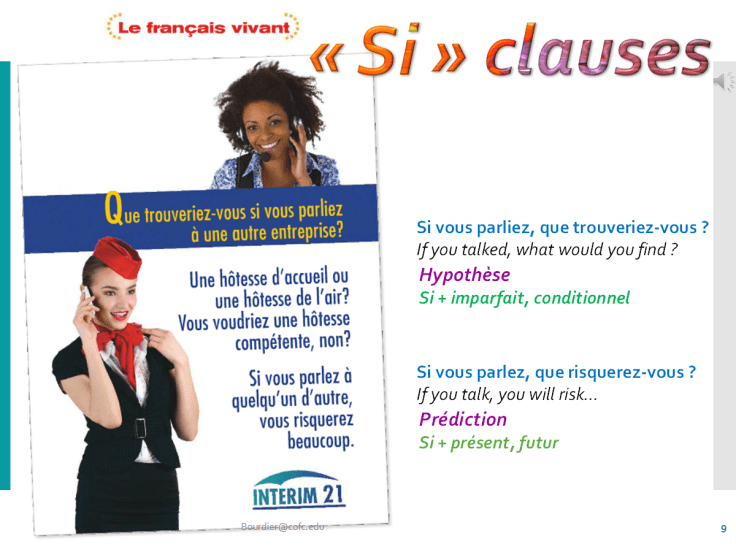
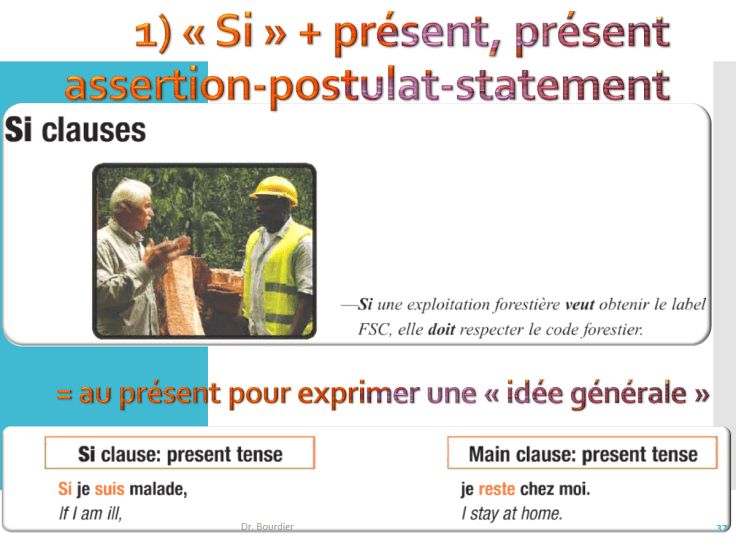
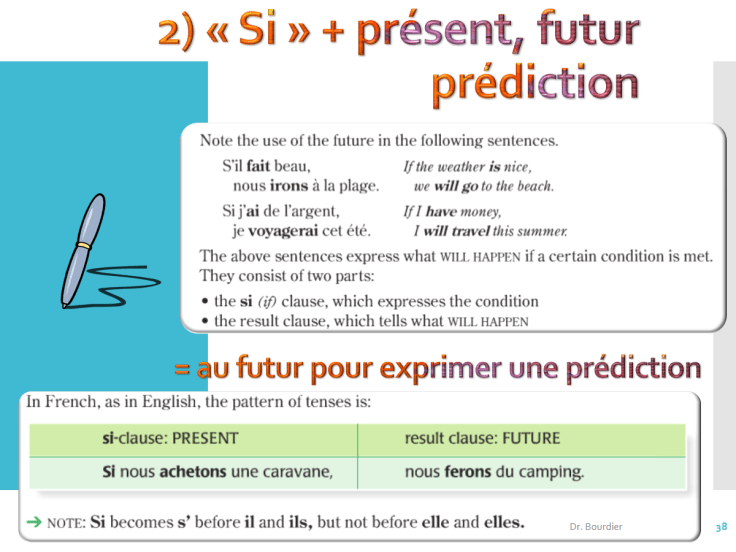
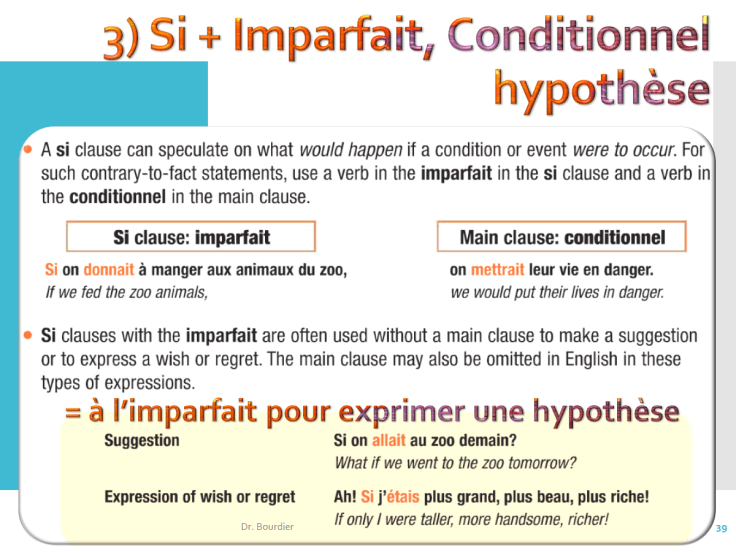
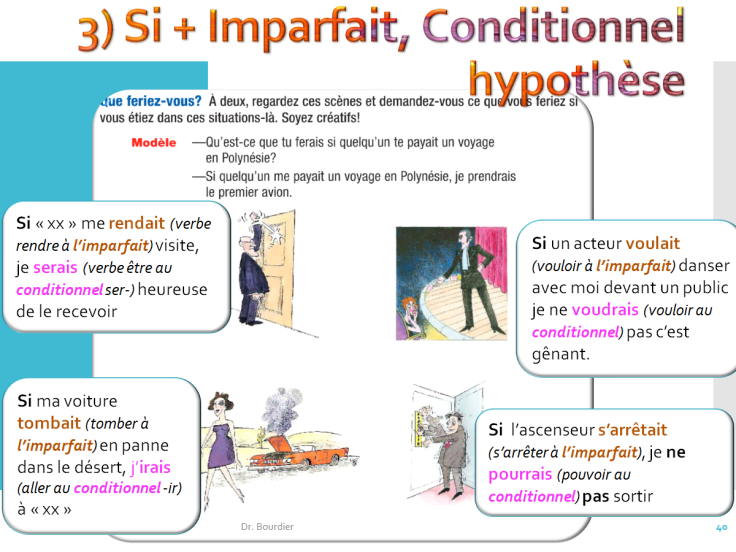
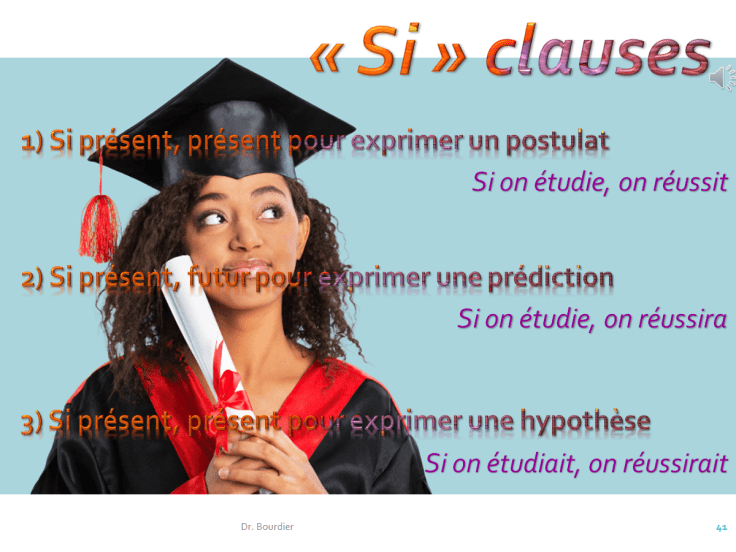
3) Si clauses (assertion, prédiction, hypothèse)
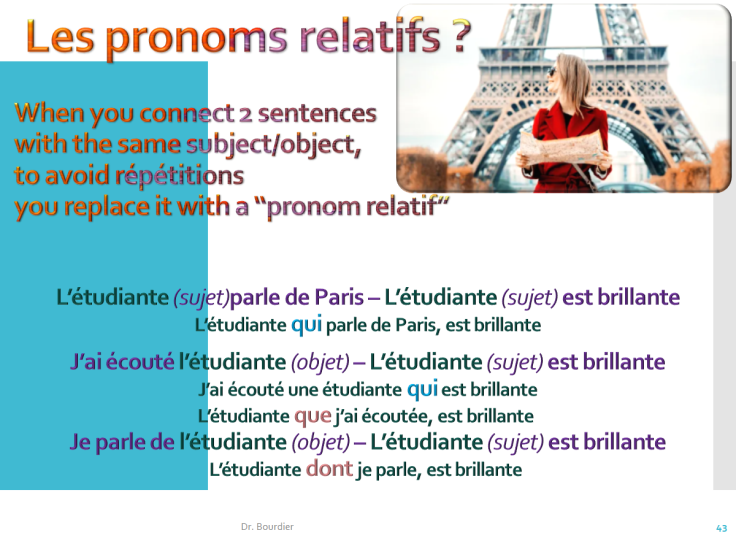
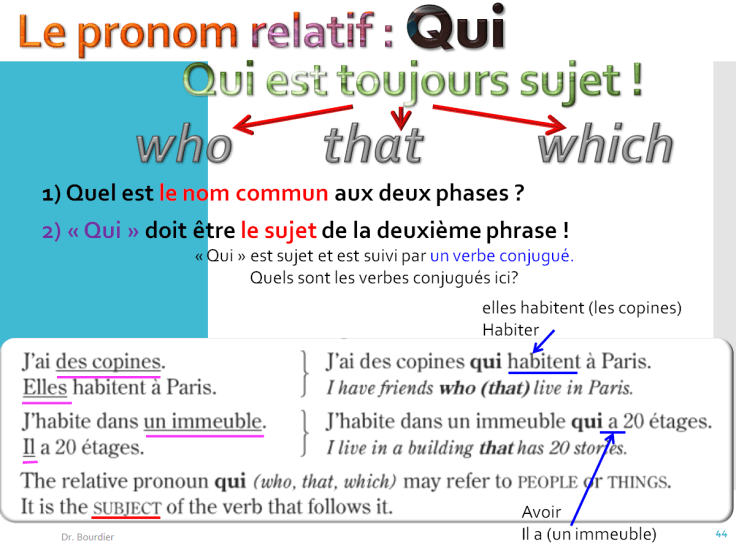
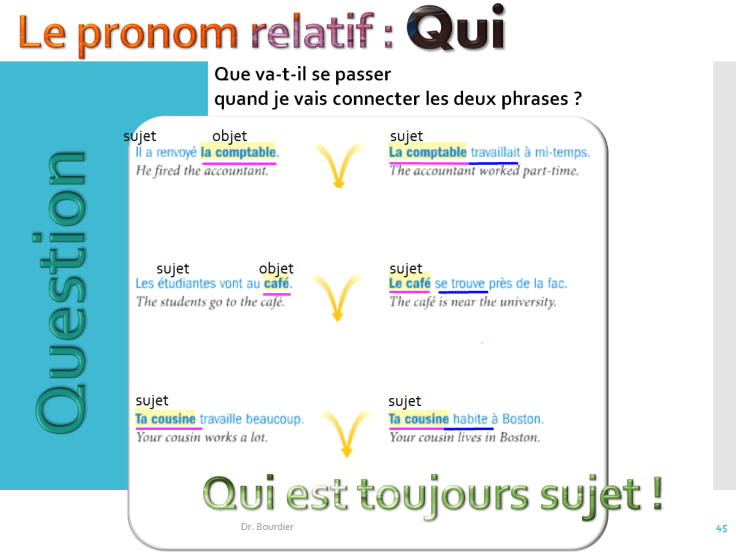
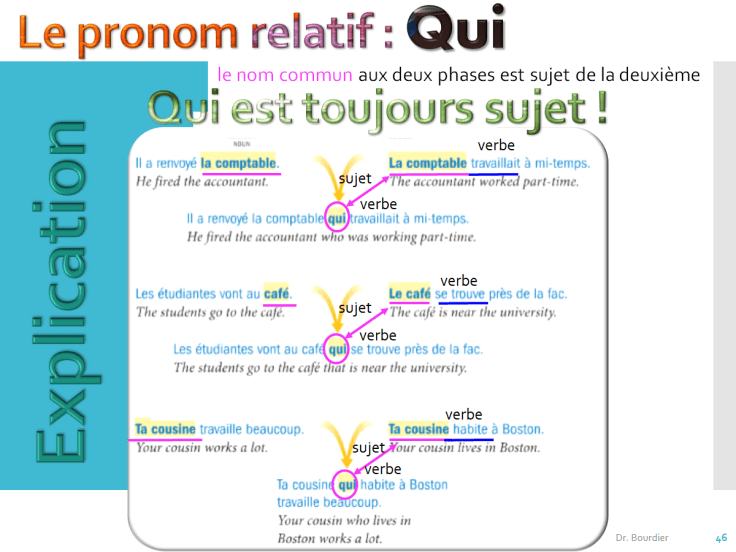
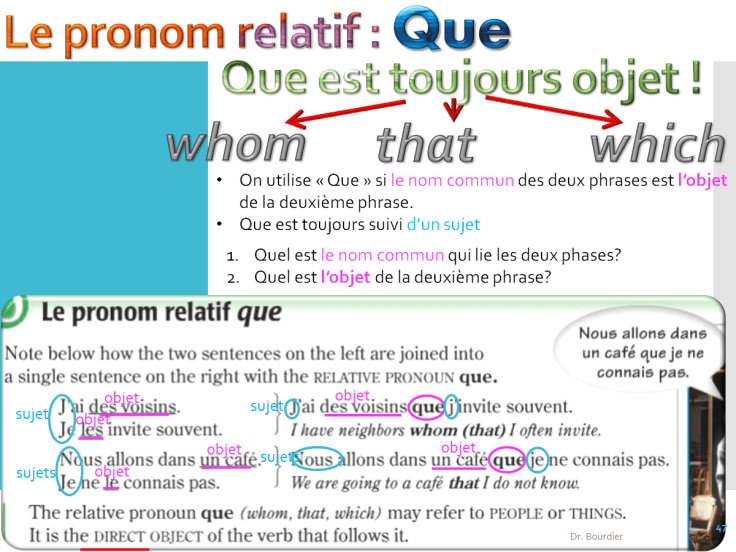
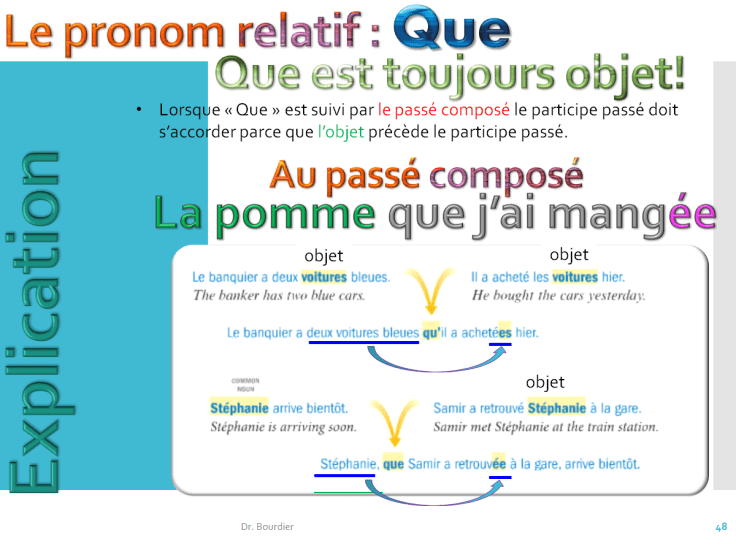
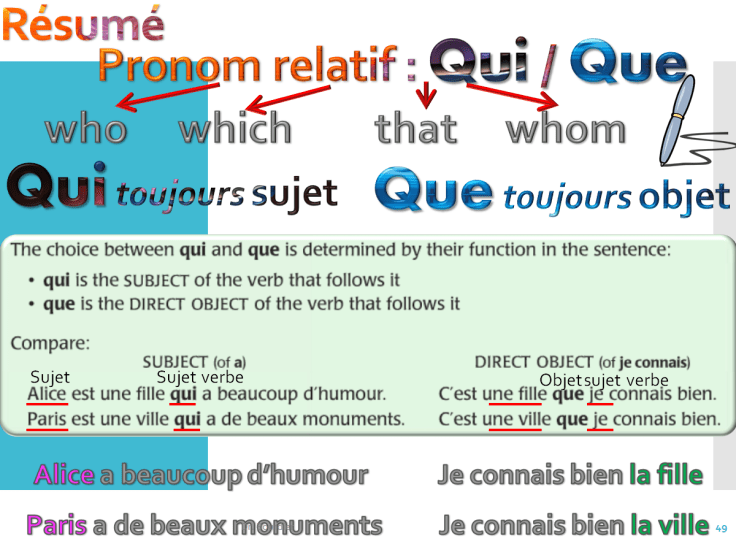
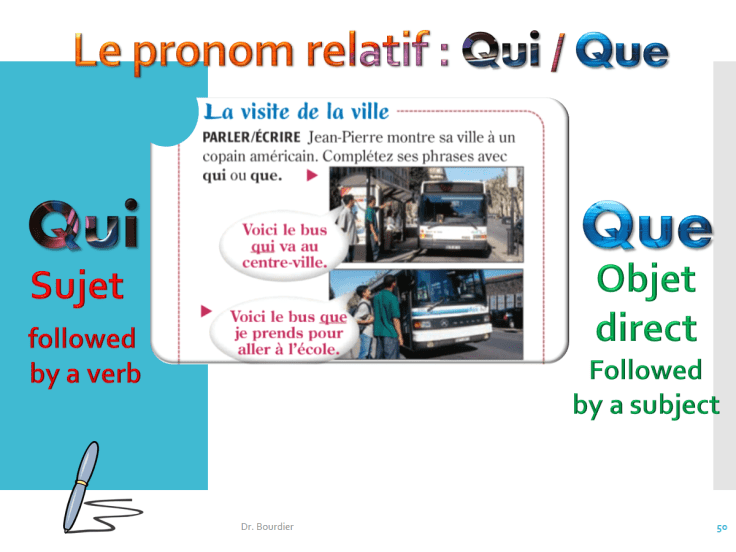
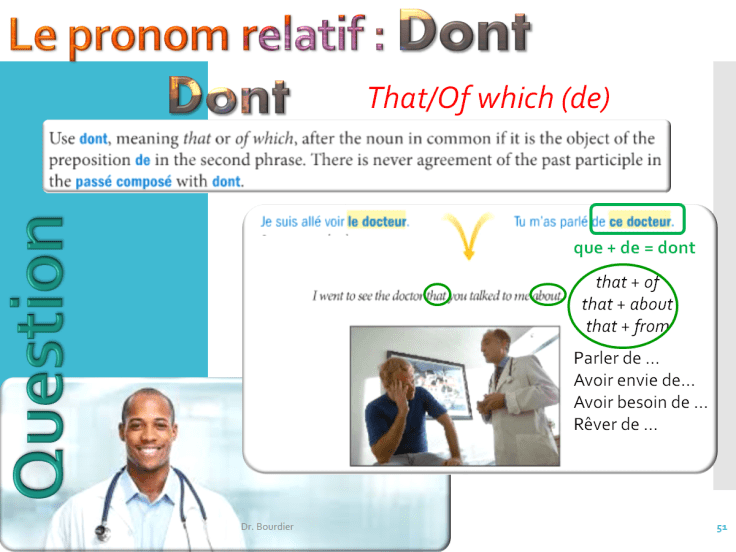
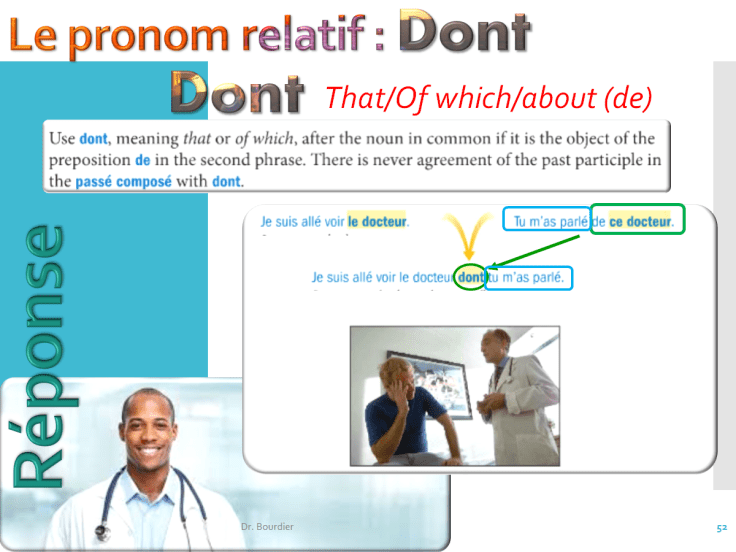
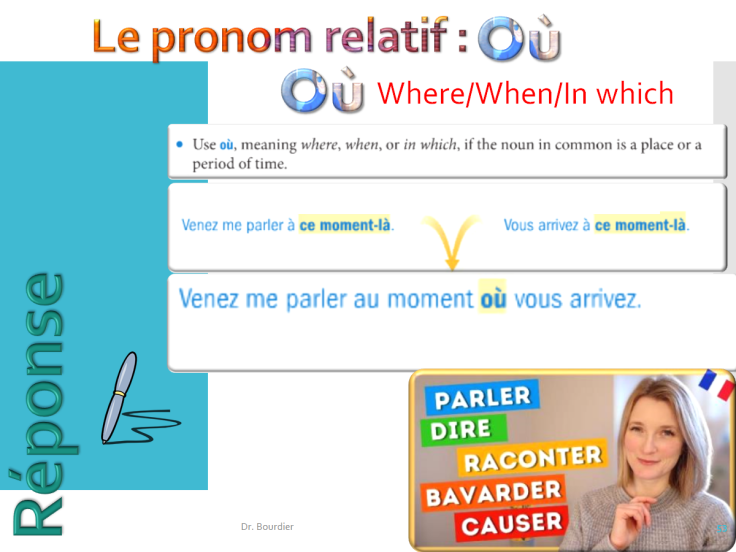
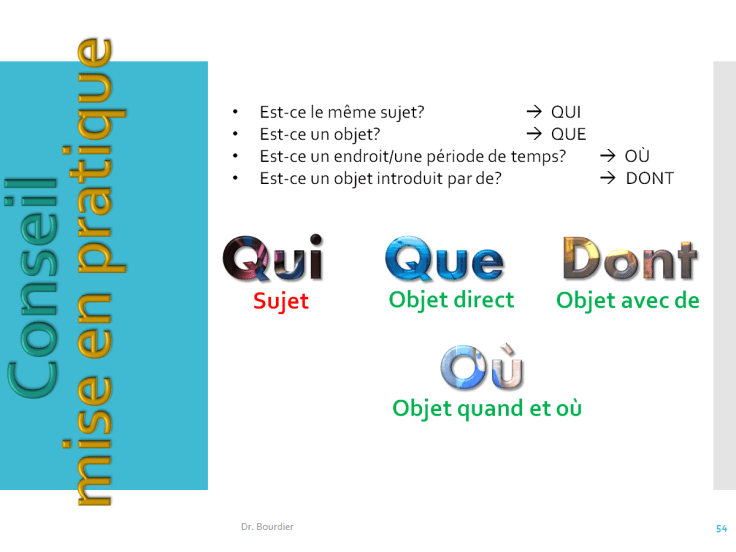
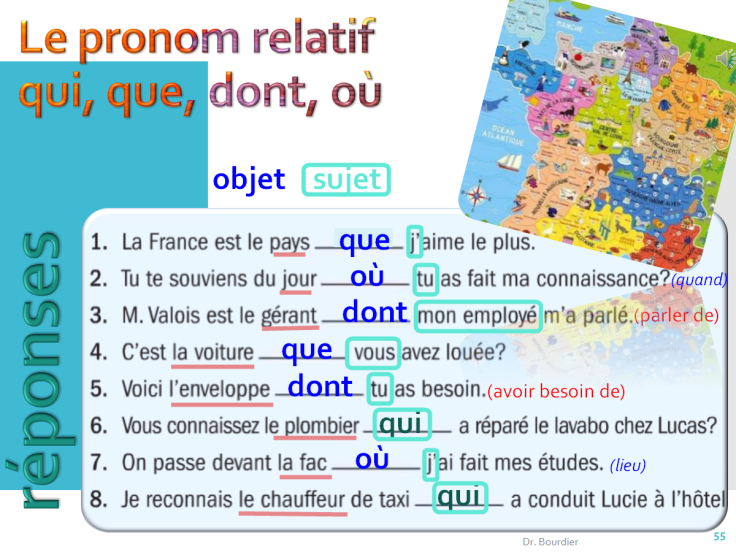
4) Pronom relatif qui, que, dont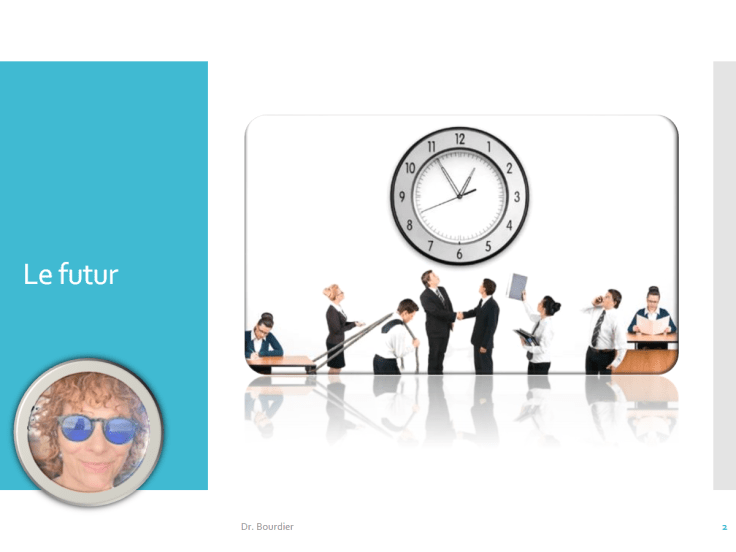








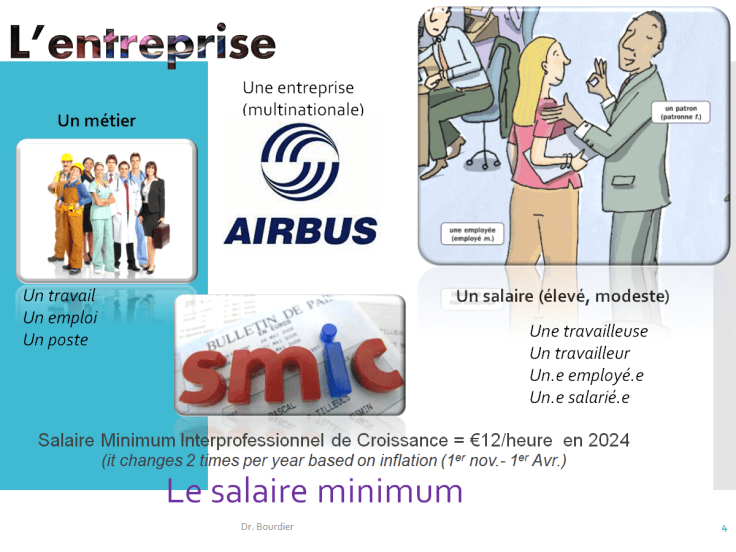
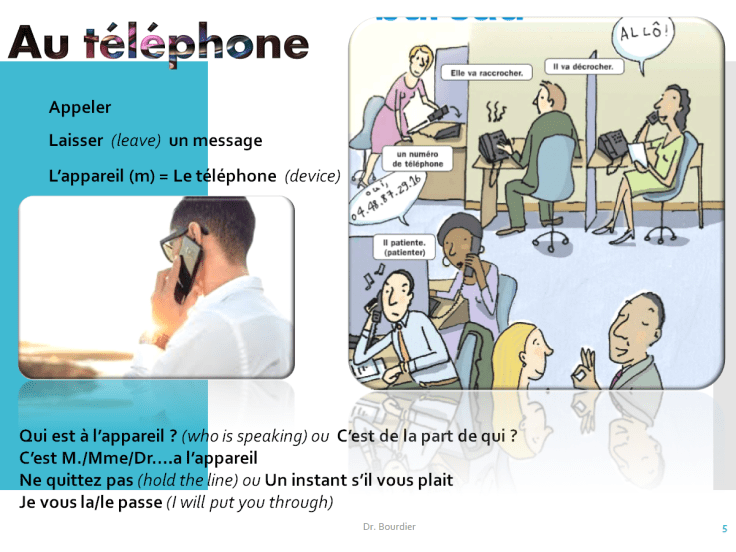
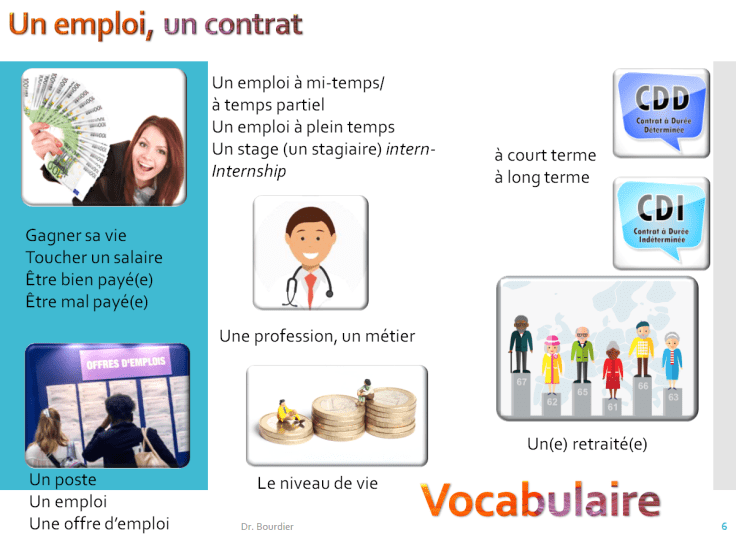
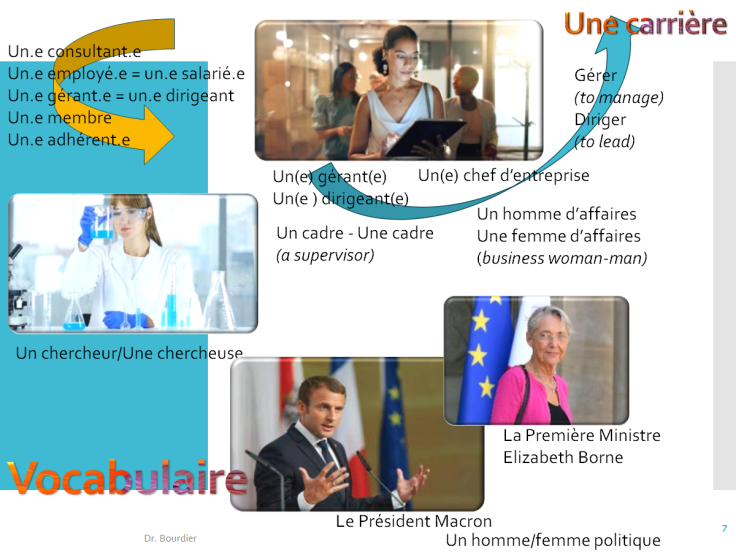
- Protected: Révision 202.13 Vocabulaire

- Research Publications
Juliette Blue Bourdier,
Medieval Anthropology – Medieval Infernology – Medieval Art History
Associate Professor, CofC
Chevalier de l’Ordre des Palmes Académiques
Chercheur Associé, CNRS CESCM « Medieval Signes, Formes et Représentations » Université de Poitiers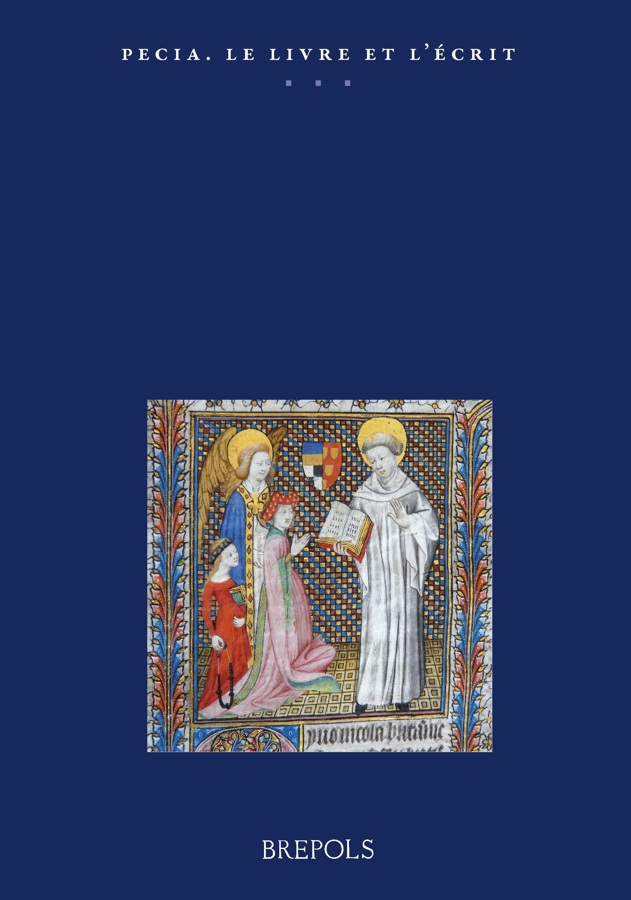
2025
“The Afterworld, Destination of the Sublimated Dreamlike Journey”, ” L’au-delà, destination du voyage onirique sublimé”, Acta Iassyensia Comparationis, 34 (2/2025), Dream In Literature. Universitatea Alexandru Ioan Cuza, Iaşi, România, 2025 : 1-12.
2024
“Quand le livre médiéval s’anime autour de la matere : objet et sujet tour à tour, When the Medieval Book Comes Alive Around the Matere: Object and Subject in Turn”, Bibliophila, Book Matters, Interfaces, n°52, Université de Bourgogne, 2024 : 51-75
2023
Juliette Bourdier, “Atelier médiéval, entre fantasmagorie et sacralité”, l’atelier comme œuvre, Ligeia, n°205, CNL, Paris, 2023 : 90-107.
https://www.revue-ligeia.com/contenu.php
Atelier comme œuvre, Atelier médiéval, entre fantasmagorie et sacralité
2022
Juliette Bourdier, “Un manuscrit parisien et ses énigmes”, livre d’heures des Le Tellier, 1460”, PECIA, n°24, Brepols, 2022 : 289-333.
https://www.brepolsonline.net/doi/abs/10.1484/J.PECIA.5.132382
Un manuscrit parisien et ses énigmes, livre d’heures des Le Tellier, 1460
2021
Juliette Bourdier, “Raoul et son Ethos discours et image d’auteur dans la création littéraire médiévale”, L’auteur dans son œuvre – entre présence et effacement, Harmattan, Paris, 2021 : 280-296.
Raoul et son Ethos discours et image d’auteur dans la création littéraire médiévale
Raoul et son Ethos d’auteur Bourdier 2021.pdf
2020
Juliette Bourdier, “Troisième genre infernal, entre utopie terrestre et dystopie infernale”, Redistribution du Genre, University of Rennes, 2020 : 48-66.
Troisième genre infernal, entre utopie terrestre et dystopie infernale
Troisième Genre infernal Bourdier.pdf
Juliette Bourdier, “Miracle marial, pilier du livre d’heures de Courtanvaux c.1460”, Les Miracles de Notre-Dame, du Moyen Âge à nos jours, Éditeur Jacques André, Lyon, 2020, 78-93.
Miracle marial, pilier du livre d’heures de Courtanvaux
2019
Juliette Bourdier. “Témoignage par l’exemplum : la construction médiévale d’une sociopoétique infernale.” Revue de Sociopoétique, Centre de Recherches sur les Littératures et la Sociopoétique, Presses Universitaires Blaise Pascal, Université Clermont Auvergne, Vol Varia 4, 2019. [Version online] http://revues-msh.uca.fr/sociopoetiques/index.php?id=1032
Témoignage par l’exemplum : la construction médiévale d’une sociopoétique infernale
Sociopoétique Infernale – Bourdier 2019.pdf
Juliette Bourdier, “Du temps absolu à l’espace universel, le paradigme infernal médiéval, Tondale et Owen,” Pratiques et Conceptions de l’espace au Moyen Âge, Journal Études Médiévales Anglaises, N°94, Dec 2019 : 199-225.
Du temps absolu à l’espace universel, le paradigme infernal médiéval, Tondale et Owen
Du temps absolu à l’espace universel-Bourdier 2019.pdf
2018
Juliette Bourdier, “Du mot à l’image, les Paines denfer du Grand Kalendrier et Composts des Bergiers”, Revue Textimage, Université Jean Moulin Lyon 3, Vol. 16, (2018): 61-88.
[Version en ligne]/2018/www.revue-textimage/16_varia_6/bourdierDu mot à l’image, les Paines denfer du Grand Kalendrier et Composts des Bergiers”
Du mot à l’imageTextimage Bourdier 2018.pdf
2017
Juliette Bourdier, “Travels through The Dark Realms of Medieval Clerical Fantasies: Sex & Erotica in the Infernal Testimony”, Comitatus, UCLA Center for Medieval and Renaissance Studies, 48, (Sept. 2017): 20-47.
Medieval Clerical Fantasy Sex and Erotica Bourdier 2017 Comitatus.pdf
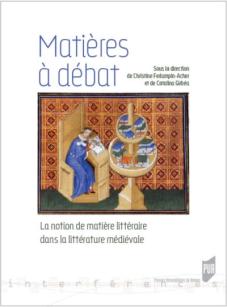
Juliette Bourdier, “La matière d’Enfer, senefiance syncrétique et polyphonie littéraire”, Matières à débat, la notion dematière littéraire dans la littérature médiévale, Presses Universitaires de Rennes, (Spring 2017): 255-273.
La matière d’Enfer, senefiance syncrétique et polyphonie littéraire”
Matiere d’enfer, sénéfiance syncrétique et polyphonie littéraire Bourdier 2017.pdf
2016
Juliette Bourdier, “L’odyssée de Brandain dans l’enfer fictionnel”, French Literature Series, XLI Odysseys, Ed. Jeanne Garane, Editions Brill, (Dec. 2016): 5-20.
Odyssey de Brendan Bourdier 2016.pdf
Juliette Bourdier, “Chaîne de traduction, s’approprier le Tractatus pour translater l’Espurgatoire”, l’évolution de la langue et le traitement des intraduisibles au sein de la recherche, Editions des Archives contemporaines, (Sept. 2016): 45-53.
Chaîne de traduction, s’approprier pour translater Bourdier 2016.pdf
2015
Juliette Bourdier, “le Jeu et le Mot : sémiotique des passages chez Raoul de Houdenc”, In Atelier de Traduction Numéro 23/2015, Editura Universităţii din Suceava, (2015): 177-190.
le Jeu et le Mot : sémiotique des passages chez Raoul de Houdenc”
[Version en ligne],/2015/08/atelier-de-traduction-nr_-23-2015-bourdier-sc3a9miotique
2014
Juliette Bourdier, “Peine et Douleurs, la Définition Sotériologique de l’Au-delà ”, TRANS-n°17, Paris : Presses Sorbonne Nouvelle, (2014): 171-182.
[Version en ligne], | 2014, mis en ligne le 24 février 2014 . URL : http://trans.revues.org/975
2011
Juliette Bourdier, “The Urbanization of Hell, When Tungdali meets with Lucyfer”, May 2011, The consortium Journal, Vol 2011, Umbrellagraph Press, (2011): 201-14.
Work in progress
- “La formulae littéraire médiévale, outil d’innovation pour l’auctōritās infernale.”
- “La fiction seconde : apostrophe auctoriale”
- “Graphic Novels: Cornucopia for French Medieval Study in Higher Education.”
- Monograph “Book of Hours de Courtanvaux: what makes a Book of hours a social object of its community.”
- Monograph “Le témoignage édifiant de voyage en enfer médiéval chrétien.”
- Monograph “Raoul de Houdenc, The Poet and the Self: Medieval Elaboration of Fictional Authorship.”
Research Interests
Medieval Studies. The study of the manuscript and the graphic representations of the self. Latin and vernacular medieval literature. Old French. Medieval theology. Medieval descriptions of the afterworld. Medieval accounts of travel in hell. Narratology.
- Sanguis Christi. Culture visuelle / Culture visionnaire, XIIIe–XVIIIe siècles
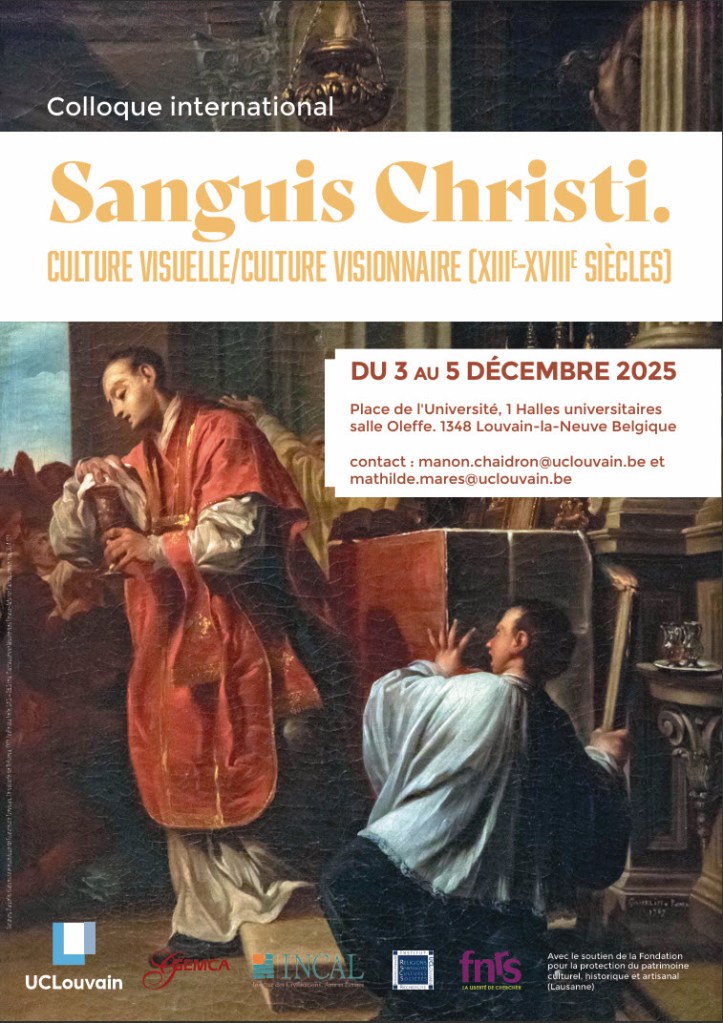
Sanguis Christi. Culture visuelle / Culture visionnaire, XIIIe–XVIIIe siècles The subject of the Blood of Christ has fueled Christian devotional culture in Europe since the mid-Middle Ages. Rooted in the veneration of relics, it quickly became central with the progressive establishment of the dogma of transubstantiation, particularly at the Fourth Lateran Council (1215), and the development of a liturgy specifically celebrating the Corpus Christi: the Feast of Corpus Christi, universally promoted within Christendom by the papal bull Transiturus (1264).
This interdisciplinary conference aims to explore how devotion to the Holy Blood, in its various forms and manifestations (relics, sacraments, miracles), shaped and nourished the emergence of a visual culture in Europe from the Middle Ages to the 18th century.
Through the lens of visuality—whether visible and/or visionary—this colloquium will examine the theological debates, the development and evolution of a devotional culture, including its social and political dimensions, and their impact on modes of representation in iconography. By visual/visionary culture, we aim to investigate what is rendered visible of the Blood of Christ and to explore the tension between what miracles make perceptible to the senses and what remains beyond perception, opening the faithful to a spiritual and sacred dimension and inspiring new modes of rendering the divine visible.
This interdisciplinary conference explores how devotion to the Holy Blood, through its various forms and manifestations (relics, sacrament, miracles), shaped a visual and visionary culture in Europe from the Middle Ages to the 18th century. It focuses on the interactions between theology, devotional culture, social and political dynamics, and modes of iconographic representation.Contributions may align with one of the following three axes: doctrinal foundations and eucharistic liturgies; visual culture and social history; object-
Example
- Protected: Révision 202.14 L’écologie (4/10/2026)
- Protected: Delf A1 – s’entraîner à l’oral (2/24/2026)
- Protected: Révision 202.13 Les vidéos (2/21/2026)
- Protected: Révisions 202.13 entretien d’embauche (2/21/2026)
- Protected: Revisions pour le placement test for Global Scholar (2/21/2026)
- Protected: Révision 202.13 lectures culture (2/21/2026)
- Protected: Revision 202.13 Grammaire (2/21/2026)
- Protected: Révision 202.13 Vocabulaire (2/21/2026)
- Research Publications (11/3/2025)
- Sanguis Christi. Culture visuelle / Culture visionnaire, XIIIe–XVIIIe siècles (11/3/2025)
Example:
- Protected: Révision 202.14 L’écologie - This content is password-protected. To view it, please enter the password below. Password:
- Protected: Delf A1 – s’entraîner à l’oral - This content is password-protected. To view it, please enter the password below. Password:
- Protected: Révision 202.13 Les vidéos - This content is password-protected. To view it, please enter the password below. Password:
- Protected: Révisions 202.13 entretien d’embauche - This content is password-protected. To view it, please enter the password below. Password:
- Protected: Revisions pour le placement test for Global Scholar - This content is password-protected. To view it, please enter the password below. Password:
- Protected: Révision 202.13 lectures culture - This content is password-protected. To view it, please enter the password below. Password:
- Protected: Revision 202.13 Grammaire - This content is password-protected. To view it, please enter the password below. Password:
- Protected: Révision 202.13 Vocabulaire - This content is password-protected. To view it, please enter the password below. Password:
- Research Publications - Juliette Blue Bourdier, Medieval Anthropology – Medieval Infernology – Medieval Art History Associate Professor, CofC Chevalier de l’Ordre des Palmes Académiques Chercheur Associé, CNRS CESCM « Medieval Signes, Formes et Représentations » Université de Poitiers 2025 “The Afterworld, Destination of the Sublimated Dreamlike... Continue Reading →
- Sanguis Christi. Culture visuelle / Culture visionnaire, XIIIe–XVIIIe siècles - The subject of the Blood of Christ has fueled Christian devotional culture in Europe since the mid-Middle Ages. Rooted in the veneration of relics, it quickly became central with the progressive establishment of the dogma of transubstantiation, particularly at the... Continue Reading →
Example:
- Protected: Révisions 202.13 entretien d’embauche
- Protected: Revisions pour le placement test for Global Scholar
- Protected: Révision 202.13 lectures culture
- Protected: Revision 202.13 Grammaire
- Protected: Révision 202.13 Vocabulaire
- Research Publications
- Sanguis Christi. Culture visuelle / Culture visionnaire, XIIIe–XVIIIe siècles
- Atelier médiéval, entre fantasmagorie et sacralité, l’atelier comme œuvre, Ligeia, n°205, CNL, Paris, 2023
- Un manuscrit parisien et ses énigmes, livre d’heures des Le Tellier, 1460”, PECIA, n°24, Brepols, 2022
- Raoul et son Ethos discours et image d’auteur dans la création littéraire médiévale, L’auteur dans son œuvre – entre présence et effacement, Harmattan, Paris, 2021
Example:
descExample:
- Yvain
- Youtubeurs… une nouvelle forme de communication ?
- Year
- Year
- Wikipedia, la contribution francophone
- What’s the point of studying medieval literature?
- What Was Cooking in Medieval Hell’s Kitchen?
- What American Students Want!
- Voyez la ville-lumière d’un ballon lumineux
- Voyage au cœur des Pyrénées : le Pays Basque français
portfolio_type
If you are using the Portfolio post type, use this to get items from a specific portfolio type.
post_parent
Display the pages that are a child of a certain page. You can either specify an ID or ‘current’, which displays the children of the current page.
Default: empty
Example:
post_status
Show posts associated with a certain post status
Default: publish
Example:
- Protected: Révision 202.14 L’écologie
- Protected: Delf A1 – s’entraîner à l’oral
- Protected: Révision 202.13 Les vidéos
- Protected: Révisions 202.13 entretien d’embauche
- Protected: Revisions pour le placement test for Global Scholar
- Protected: Révision 202.13 lectures culture
- Protected: Revision 202.13 Grammaire
- Protected: Révision 202.13 Vocabulaire
- Research Publications
- Sanguis Christi. Culture visuelle / Culture visionnaire, XIIIe–XVIIIe siècles
post_type
Specify which post type to use. You can use a default one (post or page). For Portfolios use “jetpack-portfolio”. Similarly, for Testimonials use “jetpack-testimonial”.
Default: post
Example:
- Frenchie
- libremot
- Le home
- La démotique du trouvère maudit
- Raoul de Houdenc, la débauche du poète grivois
- Vidéos pour la réflexion
- Entre-deux, 1) La publicité
Example:
- Protected: Révision 202.14 L’écologie
- Protected: Delf A1 – s’entraîner à l’oral
- Protected: Révision 202.13 Les vidéos
- Protected: Révisions 202.13 entretien d’embauche
- Protected: Revisions pour le placement test for Global Scholar
Example:
taxonomy, tax_term, and tax_operator
Use these parameters to do advanced taxonomy queries. Use ‘taxonomy’ for the taxonomy you’d like to query, ‘tax_term’ for the term slug (or terms) you’d like to include, and ‘operator’ to change how the query uses those terms (most likely this field will not be needed).
Default: ‘taxonomy’ = empty , ‘tax_term’ = empty , ‘tax_operator’ = ‘IN’
Example:
wrapper
What type of HTML should be used to display the listings. It can be an unordered list (ul), ordered list (ol), or divs (div) which you can then style yourself.
Default: ul
Example:
- Protected: Révision 202.14 L’écologie
- Protected: Delf A1 – s’entraîner à l’oral
- Protected: Révision 202.13 Les vidéos
- Protected: Révisions 202.13 entretien d’embauche
- Protected: Revisions pour le placement test for Global Scholar
- Protected: Révision 202.13 lectures culture
- Protected: Revision 202.13 Grammaire
- Protected: Révision 202.13 Vocabulaire
- Research Publications
- Sanguis Christi. Culture visuelle / Culture visionnaire, XIIIe–XVIIIe siècles
taxonomy_(count)
Which taxonomy to query
Default: empty
tax_(count)_term
Which terms to include (if more than one, separate with commas)
Default: empty
tax_(count)_operator
How to query the terms (IN, NOT IN, or AND)
Default: IN
tax_relation
Describe the relationship between the multiple taxonomy queries (should the results match all the queries or just one of them). Available options: AND and OR
Default: AND
A common request is display a list of posts with title, excerpt, and the thumbnail aligned to the right. Here’s the shortcode you might use:
This includes the excerpt, adds an image of the “thumbnail” size (you can customize the image sizes in Settings > Media), and tells it to present the list without bullets.
In order to get the image floating to the right, add this to your custom CSS file (requires the WordPress.com Premium or WordPress.com Business upgrade):
.display-posts-listing .alignleft {
float: right;
margin: 0 0 5px 5px;
}
display-posts display_category=”true”
display_category=”true”
display_tags=”true”
posts_per_page=”40″ display-posts display-posts
include_excerpt=”true”
include_tag=”true” display_tag=”true”
excerpt_length=”5″ order=”ASC” orderby=”title”
category_display=”true”


You must be logged in to post a comment.